
HubSpot setup guide
Install Gia's Giraffes from the HubSpot App Marketplace, choose which contacts to import, log every gift on the contact timeline, send gifts from deal stages, and disconnect or uninstall.
6 min readUpdated
Gia's Giraffes sends real gifts from independent brands to your HubSpot contacts and logs every step on the contact's timeline. This guide covers installing the app, connecting HubSpot, choosing which contacts come in, using it day to day, and disconnecting or uninstalling. Setup takes about two minutes.
Quick answer: what the HubSpot app does
- Imports the contacts you choose: the ones you own, all contacts, or one list. You can keep them in sync every 6 hours.
- Logs each gift step on the contact as a note: sent, opened, accepted, shipped, delivered, thank-you, and meeting booked or canceled.
- Sends a gift when a deal reaches a stage you pick, with your approval before each one.
- Ships a gift only after the prospect books a meeting on your HubSpot Meetings link, if you choose that option.
The HubSpot app is part of Gia's Giraffes Pro ($19.99 per user per month, 14-day free trial). Recipients never see a price, and you pay only for gifts that are accepted.
What you need
- A HubSpot account (any edition), and permission to install apps in it.
- A Gia's Giraffes account on Pro. On a team, the team's owner or an admin connects HubSpot for everyone.
Install from the HubSpot App Marketplace
- On the Gia's Giraffes listing in the HubSpot App Marketplace, click Install.
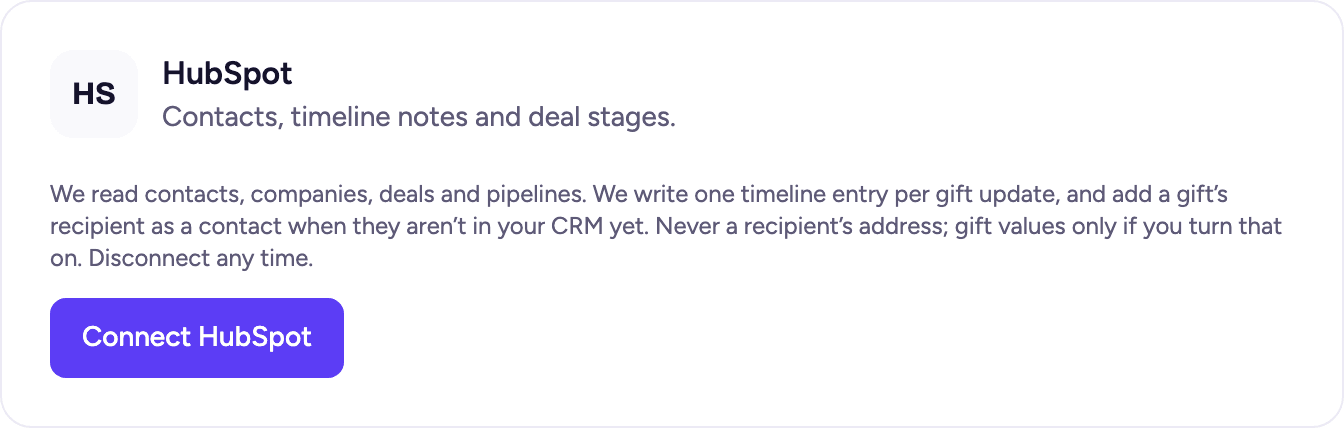
- If you don't have a Gia's Giraffes account yet, sign up. You come straight back to the install afterwards. If you're on Free, start the Pro trial from the note on the HubSpot card, then click Connect HubSpot.
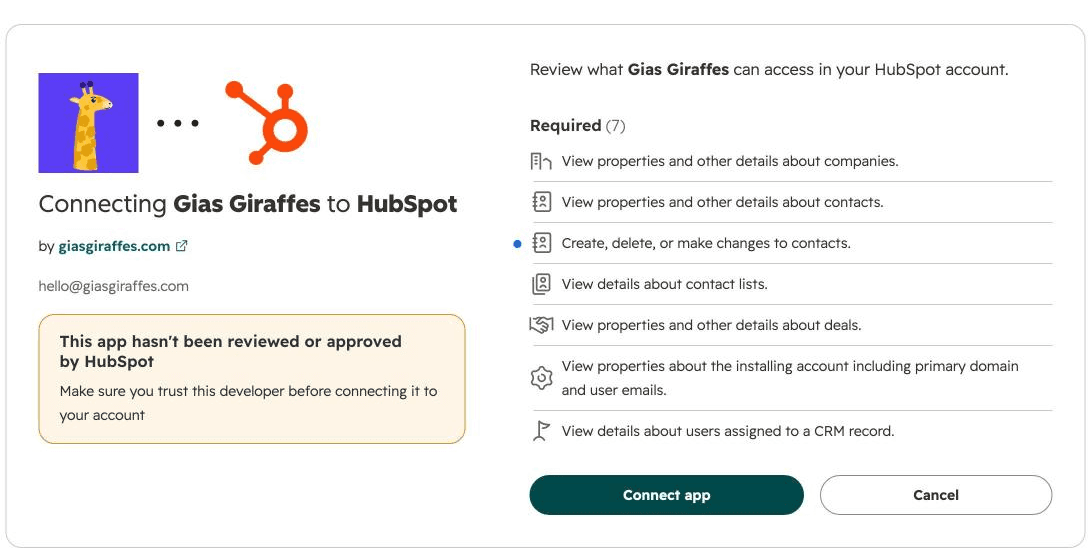
- HubSpot asks you to choose the account to connect and shows the permissions Gia's Giraffes needs (below). Click Connect app.
- You land in Gia's Giraffes Settings → Integrations with HubSpot marked Connected.
You can also start from Gia's Giraffes: open Settings → Integrations and click Connect HubSpot on the HubSpot card.
The permissions Gia's Giraffes asks for, and why
| Permission | Why |
|---|---|
| Read contacts | Import the contacts you choose, and check a HubSpot Meetings booking for meeting-unlock gifts |
| Write contacts | Add a note to the contact for each gift step, and create the contact when you send a gift to a new email |
| Read companies | Bring in each contact's company |
| Read deals | Send a gift when a deal reaches the stage you chose |
| Read owners | Import only the contacts you own |
| Read lists | Import the members of one list |
| OAuth | HubSpot's standard sign-in permission |
Choose which contacts to import
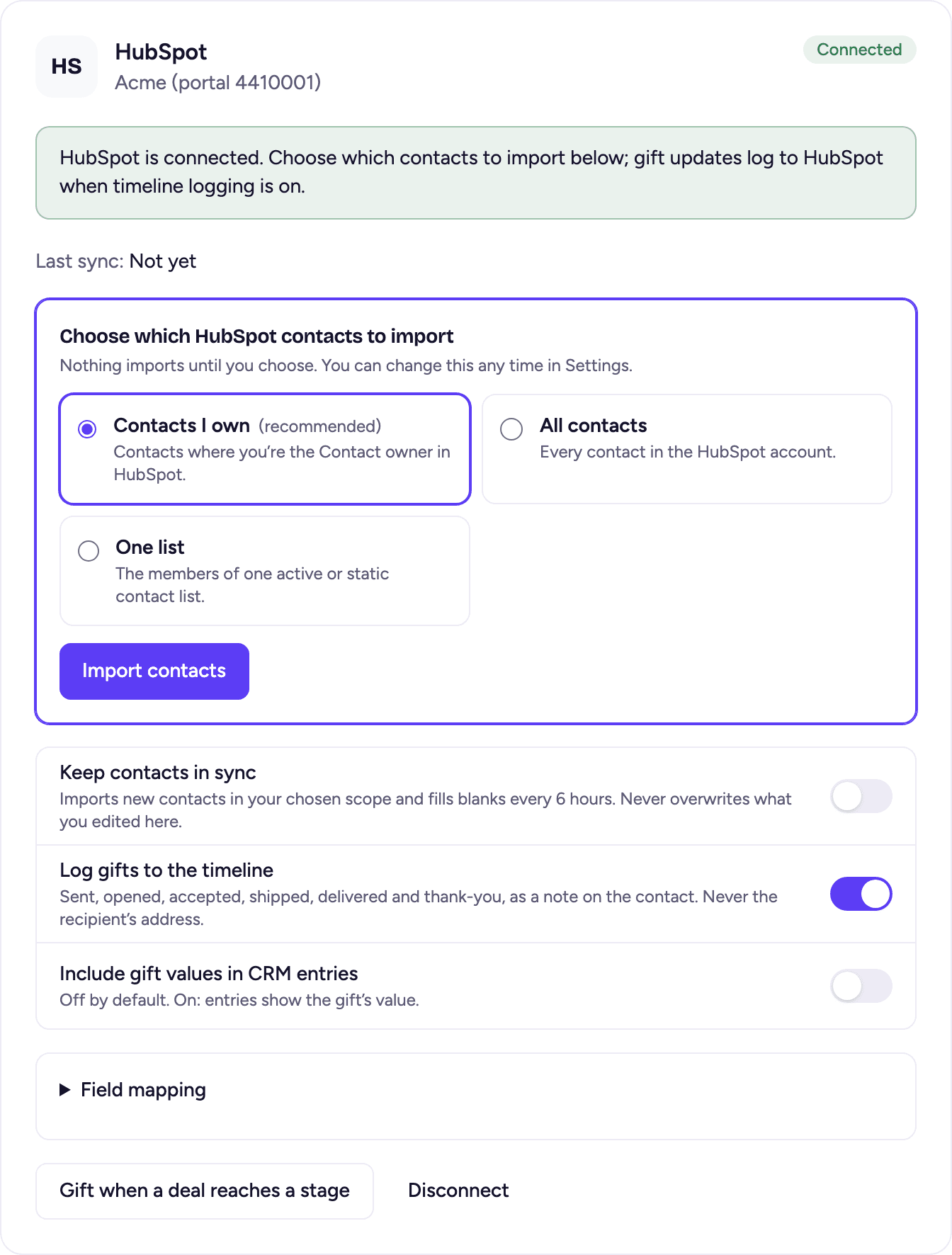
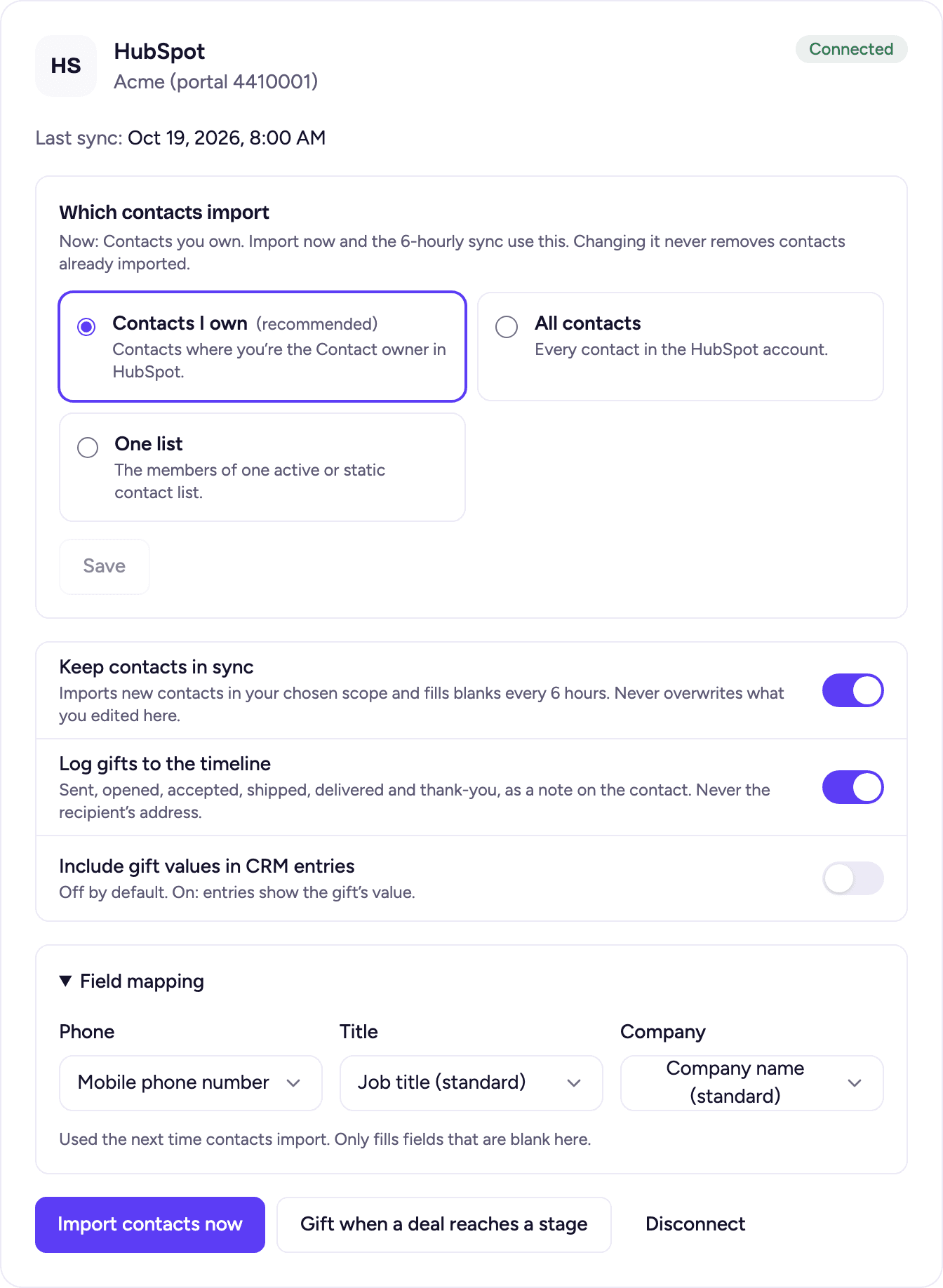
Right after connecting, the HubSpot card asks which contacts to bring in. Nothing imports until you click Import contacts.
- Contacts I own: contacts where you're the Contact owner. This is the default, and the safest choice in a shared account.
- All contacts: every contact in the account.
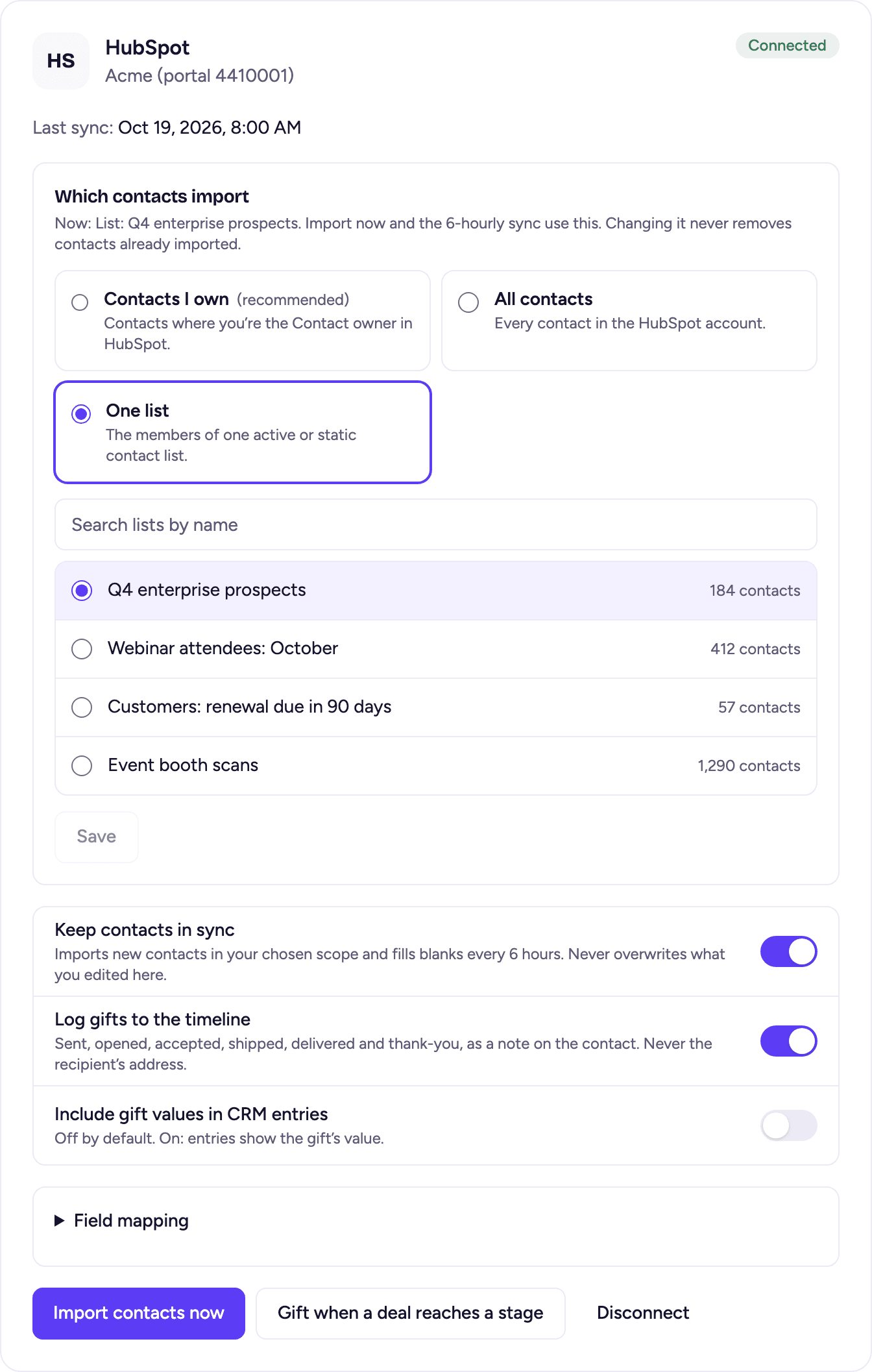
- One list: the members of one active or static list. Search lists by name; each one shows its size.
Imported contacts appear in Contacts, marked From HubSpot, with their company.

To change it later, pick another option in Which contacts import and click Save. Changing it never removes contacts that were already imported; it only decides what comes in from then on.
Configure sync and timeline logging
The connected HubSpot card has three switches and a field map:
- Keep contacts in sync: re-imports your chosen contacts every 6 hours. It fills blanks only and never overwrites what you edited in Gia's Giraffes.
- Log gifts to the timeline: writes a note on the contact for each gift step. On by default.
- Include gift values: adds the gift's value to those notes. Off by default; only the account owner can turn it on.
- Field mapping: choose which HubSpot phone, job title and company properties fill those fields.
Use it: send a gift to a HubSpot contact
- In Gia's Giraffes, click Send a gift and pick the contact (imported HubSpot contacts are in Contacts, filtered by source "HubSpot").
- Choose a gift, or let them choose at a budget you set, add a note or a short video, and send.
- A note appears on the contact's timeline in HubSpot within a minute: "Gift sent", then "opened", "accepted", "shipped", "delivered" and "thank-you" as they happen. Each note has the gift title, who sent it and a link to the gift.
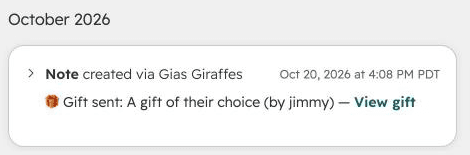
If you send to an email that isn't in HubSpot yet, Gia's Giraffes creates the contact (name, email and company) so the notes have somewhere to go.
What we never write to HubSpot: the recipient's address, and the gift's value unless you turned that on. Test gifts are never written to HubSpot.
Use it: send a gift when a deal reaches a stage
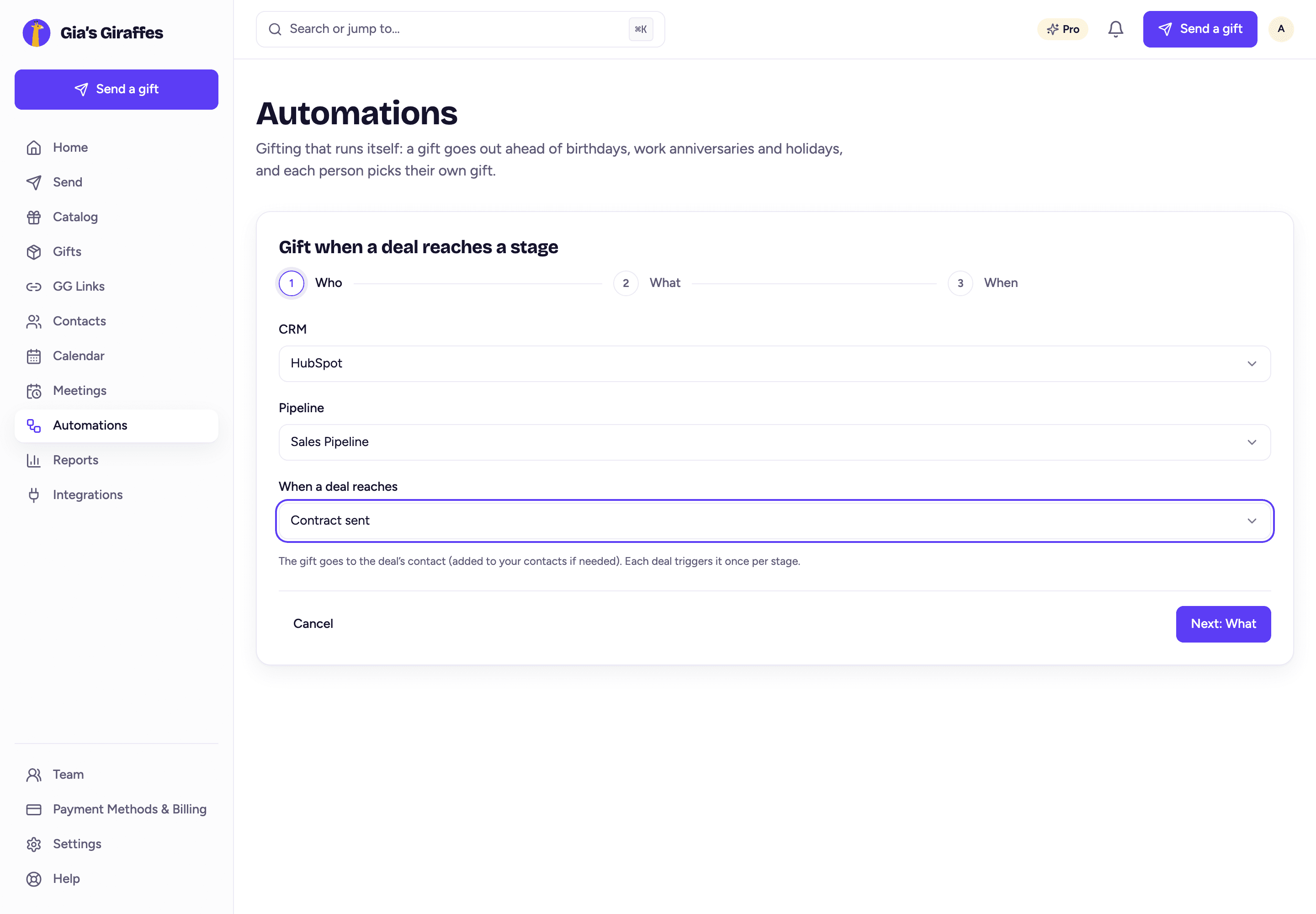
- On the HubSpot card, click Gift when a deal reaches a stage.
- Pick the pipeline and the stage, for example "Contract sent" or "Closed won".
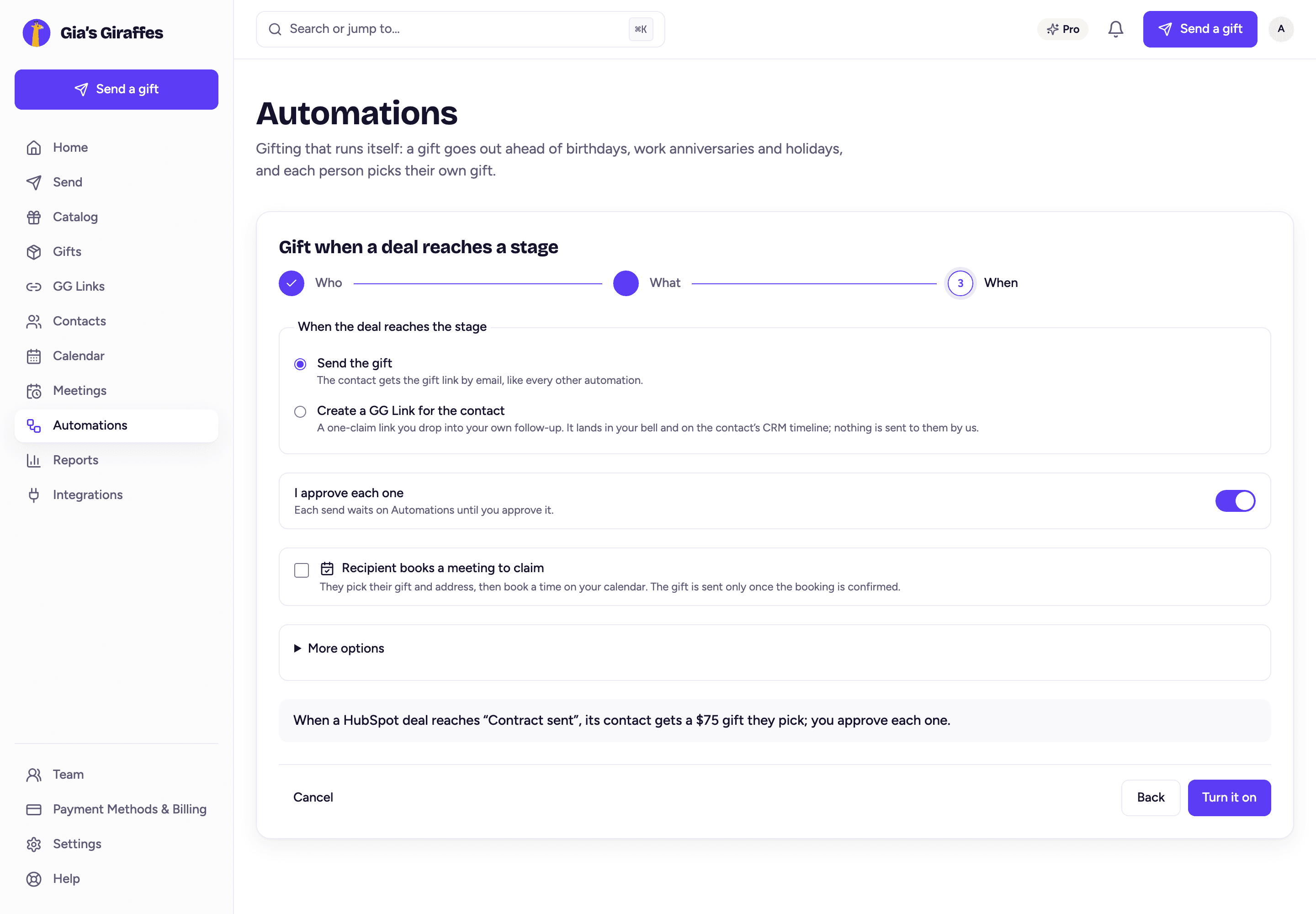
- Choose what happens: send a specific gift, let them choose at a budget, or create a one-time GG Link for the deal's contact. Optionally ask them to book a meeting before the gift ships.
- Keep I approve each one on (the default) to get a heads-up and approve each send, or turn it off to send automatically.
HubSpot tells Gia's Giraffes when a deal changes stage. Each deal triggers once per stage. The gift goes to the first contact associated with the deal, who is added to your contacts if needed.
Use it: ship a gift after a HubSpot Meetings booking
When you send a gift or create a GG Link, turn on Recipient books a meeting to claim, choose HubSpot Meetings under Booked on, and paste your meetings link. The recipient picks their gift, books a time on your HubSpot Meetings page, and the gift ships only once the booking is confirmed. If they never book, nothing is charged.
Disconnect HubSpot
In Gia's Giraffes, open Settings → Integrations and click Disconnect on the HubSpot card. On a team, only the owner or an admin can.
Disconnecting:
- Uninstalls the app from your HubSpot account: Gia's Giraffes leaves Connected Apps, and HubSpot emails the account's super admins.
- Deletes the HubSpot connection and its stored access from Gia's Giraffes, along with any gift notes still waiting to be written.
- Turns off deal-stage automations on HubSpot. They show as "Paused" with the reason on the Automations list.
- Keeps what's already there: contacts already imported stay in Gia's Giraffes, and notes already written stay on your HubSpot contacts.
You can connect again at any time; you'll choose the account and approve the permissions again.
Uninstall from HubSpot
You can also remove the app from inside HubSpot: Settings → Integrations → Connected Apps, find Gia's Giraffes, then Actions → Uninstall.
After that, HubSpot stops accepting requests from Gia's Giraffes. Within 6 hours Gia's Giraffes notices, marks HubSpot as Needs reconnect on the card, pauses your deal-stage automations and tells you in the notification bell. Gift notes stop being written. To delete the stored connection from Gia's Giraffes as well, click Disconnect on the card. Imported contacts and existing HubSpot notes stay, as with disconnecting.
Your data
- Gia's Giraffes reads only the contacts you choose, and writes only gift notes and new contacts for people you send gifts to.
- The HubSpot access token is stored encrypted in a secrets vault and is never shown in the app.
- To delete your imported contacts, select them in Contacts and delete them, or delete your Gia's Giraffes account. Our privacy policy has the details.
FAQ
- Do I need Pro?
- Yes. The HubSpot app is part of Pro, which has a 14-day free trial. If you downgrade, the connection is paused and nothing is deleted; upgrading again resumes it.
- Will it overwrite my HubSpot data?
- No. Gia's Giraffes never changes existing HubSpot contacts, companies or deals. It adds notes to contacts, and creates a contact only when you send a gift to an email HubSpot doesn't have.
- Can two people connect the same HubSpot account?
- One HubSpot account connects to one Gia's Giraffes account or team. On a team, the owner or an admin connects it once and every teammate's gifts log to it.
- Where do I get help?
- Email hello@giasgiraffes.com, or use the contact page.
Ready to connect your tools?
Start free. Integrations, AI tools and the meeting option are part of Gia’s Giraffes Pro.