
Gia's Giraffes for sales teams: HubSpot, Salesforce and Calendly integrations
Connect HubSpot, Salesforce, Calendly, Cal.com or HubSpot Meetings to Gia's Giraffes: send a gift when a deal moves, have the recipient book a meeting to claim it, and see every step on the CRM timeline.
10 min readUpdated
Gia's Giraffes connects to HubSpot, Salesforce, Calendly, Cal.com and HubSpot Meetings so a rep can send a gift when a deal moves, have the recipient book a meeting to claim it, and see every step on the CRM timeline. All of this is included in Pro.
Quick answer: what each integration does
Connect once in Settings → Integrations. Setup takes two to three minutes per tool and needs no IT help: you sign in to the tool, approve the permissions, and you're connected.
| Integration | What it does for a rep | What you need |
|---|---|---|
| HubSpot | Imports contacts and companies. Logs every gift event (sent, opened, accepted, shipped, delivered, thank-you) as a note on the contact. Sends a gift automatically when a deal reaches a stage you choose. | A HubSpot account. Gia's Giraffes Pro. |
| Salesforce | Imports Contacts and Accounts. Logs each gift event as a completed Task on the Contact. Sends a gift when an Opportunity reaches a stage (checked every 10 minutes). | A Salesforce account with API access. Gia's Giraffes Pro. |
| Calendly | Recipients must book a meeting on your Calendly before the gift ships. Booking is confirmed automatically. | A paid Calendly plan (Standard or higher) for automatic confirmation. Gia's Giraffes Pro. |
| Cal.com | Same as Calendly. Connect Cal.com in one click, or use a Cal.com API key. | A Cal.com account. Gia's Giraffes Pro. |
| HubSpot Meetings | Same as Calendly, using the HubSpot connection you already made. | HubSpot connected. Gia's Giraffes Pro. |
Recipients never see a price. Not on the gift page, not in the scheduler, not in any email.
How it works
A gift becomes a meeting, and the meeting becomes a CRM record, with no copy-and-paste in between.
- A rep sends a gift, or a deal reaching a stage sends it for them.
- The prospect gets an email with a link; no price anywhere.
- They open the gift and pick what they'd like.
- They enter their shipping address.
- With the meeting option on, they book a time on the rep's calendar. The scheduler confirms the booking to Gia's Giraffes; only then is the card charged and the order placed.
- The gift ships and tracking updates.
- Every step (sent, opened, accepted, booked, shipped, delivered) is logged on the CRM contact.
- The prospect sends a thank-you; it lands on the contact too.
Step 5 is the part that matters for your budget: nothing is charged and no order is placed until the scheduling tool confirms the booking to our server. If the prospect never books, the gift stays pending and expires unclaimed, at no cost to you. If you skip the meeting option, steps 4 and 5 drop out and the gift is charged when the prospect accepts it.
HubSpot integration
HubSpot connects in about two minutes and starts logging gift activity to your contacts right away. You choose which contacts come in: by default, only the ones you own.
What syncs
| Direction | What | How often |
|---|---|---|
| HubSpot → Gia's Giraffes | Contacts you choose (the ones you own, all of them, or one list): name, email, phone, title and company | When you click Import contacts, then every 6 hours with Keep contacts in sync on. Fills blanks only; never overwrites what you edited. |
| Gia's Giraffes → HubSpot | One note on the contact per gift event: sent, opened, accepted, shipped, delivered, thank-you, meeting booked or canceled | Within seconds of each event |
| Gia's Giraffes → HubSpot | A new contact (name, email, company) when you send a gift to an email that isn't in HubSpot yet, so the notes have a contact to go on. Existing HubSpot contacts are never changed. | When the gift is sent |
| HubSpot → Gia's Giraffes | Deal stage changes (to trigger a gift) | Instantly, by webhook |
How to connect
- In Gia's Giraffes, open Settings → Integrations and click Connect on the HubSpot tile.
- Sign in to HubSpot and pick the account. Approve the permissions: read contacts, write contacts (for the notes), read companies, read deals, read owners (to find the contacts you own), read lists (to import one list), and the standard OAuth permission.
- You land back in Settings with HubSpot marked Connected and a Choose which HubSpot contacts to import box. Pick Contacts I own (the default), All contacts, or One list, then click Import contacts. Nothing imports until you do.
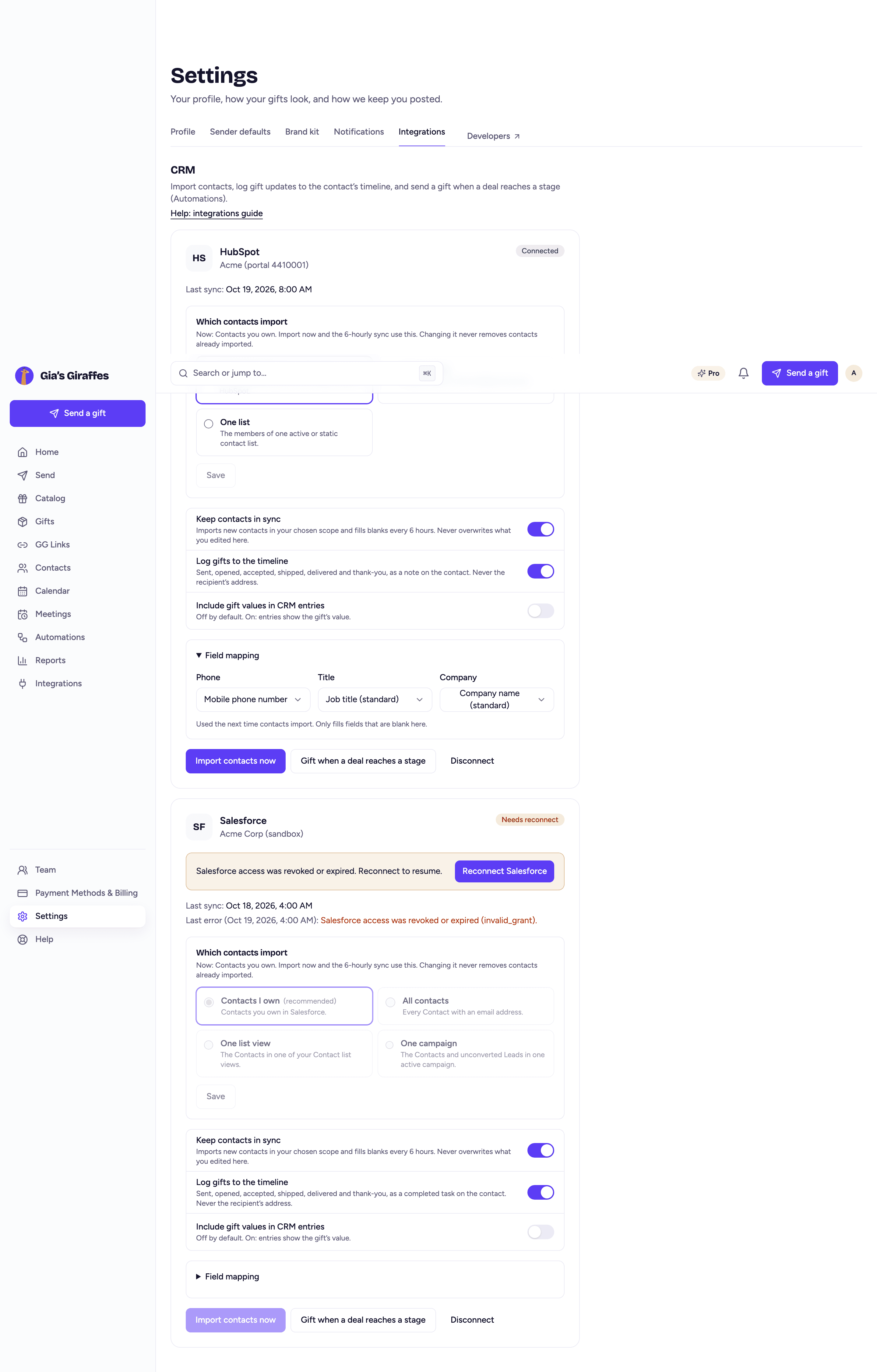
- Optional: open Field mapping to choose which HubSpot phone, title and company fields fill the blanks here.
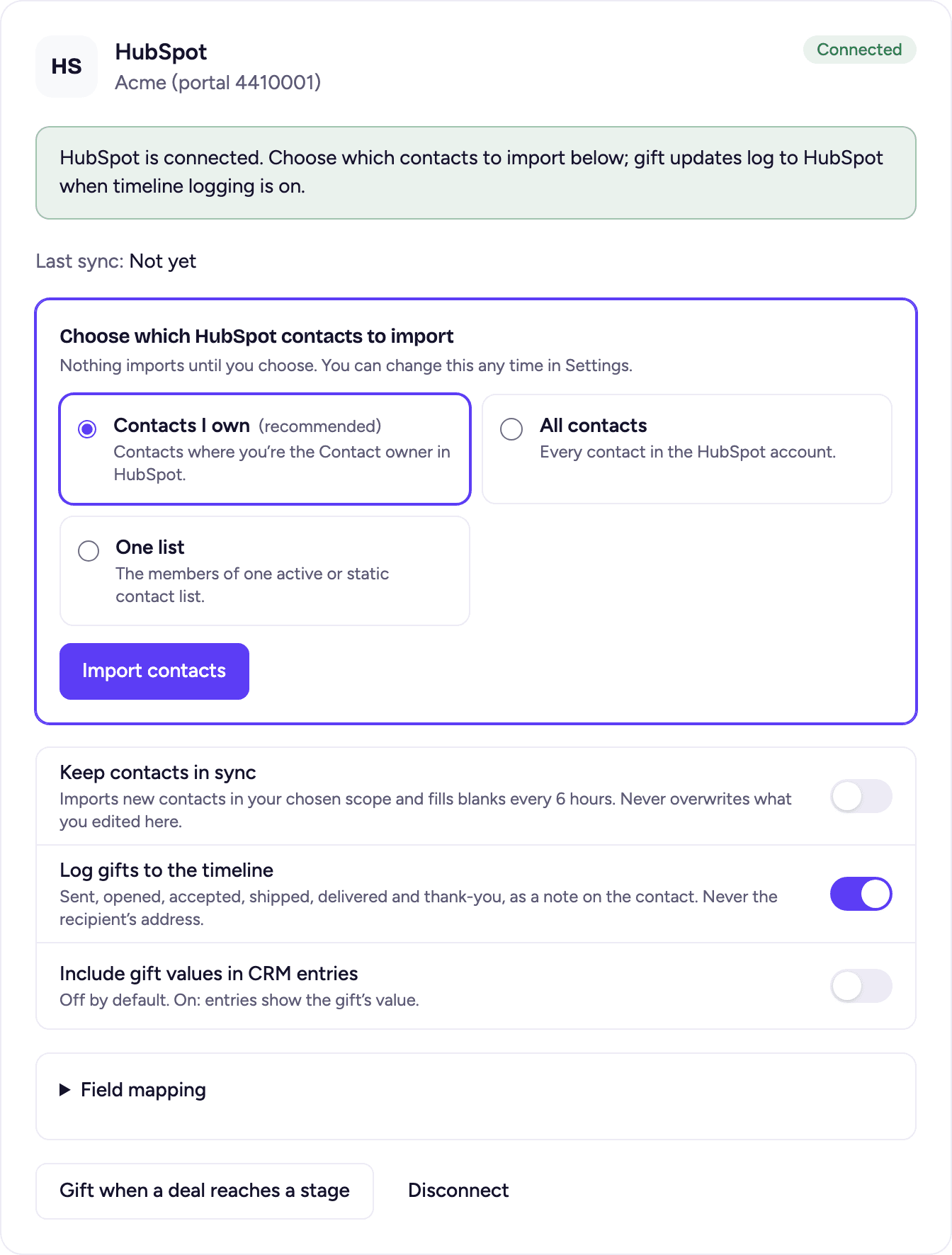
Change which contacts import
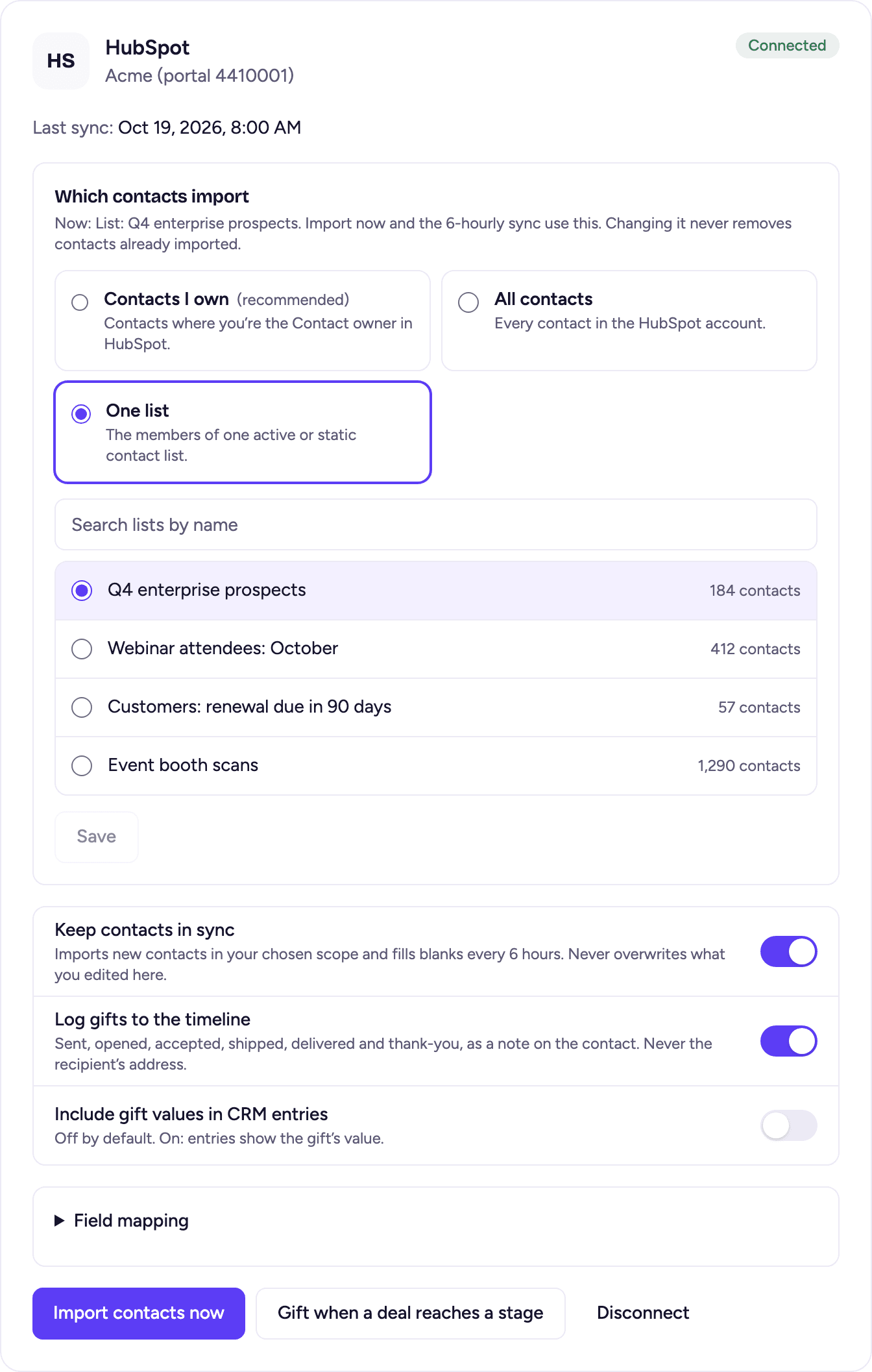
The Which contacts import box on the HubSpot card shows the current choice. Pick another and click Save:
- Contacts I own: contacts where you're the Contact owner in HubSpot. The safest choice in a shared portal.
- All contacts: every contact in the account.
- One list: the members of one active or static contact list. Search lists by name; each shows its size.
The next Import contacts now and the 6-hourly sync use the new choice. Changing it never removes contacts that were already imported; it only decides what comes in from now on. If you connected HubSpot before this option existed, the card asks you to Reconnect HubSpot once so it can read owners and lists.
Send a gift when a deal reaches a stage
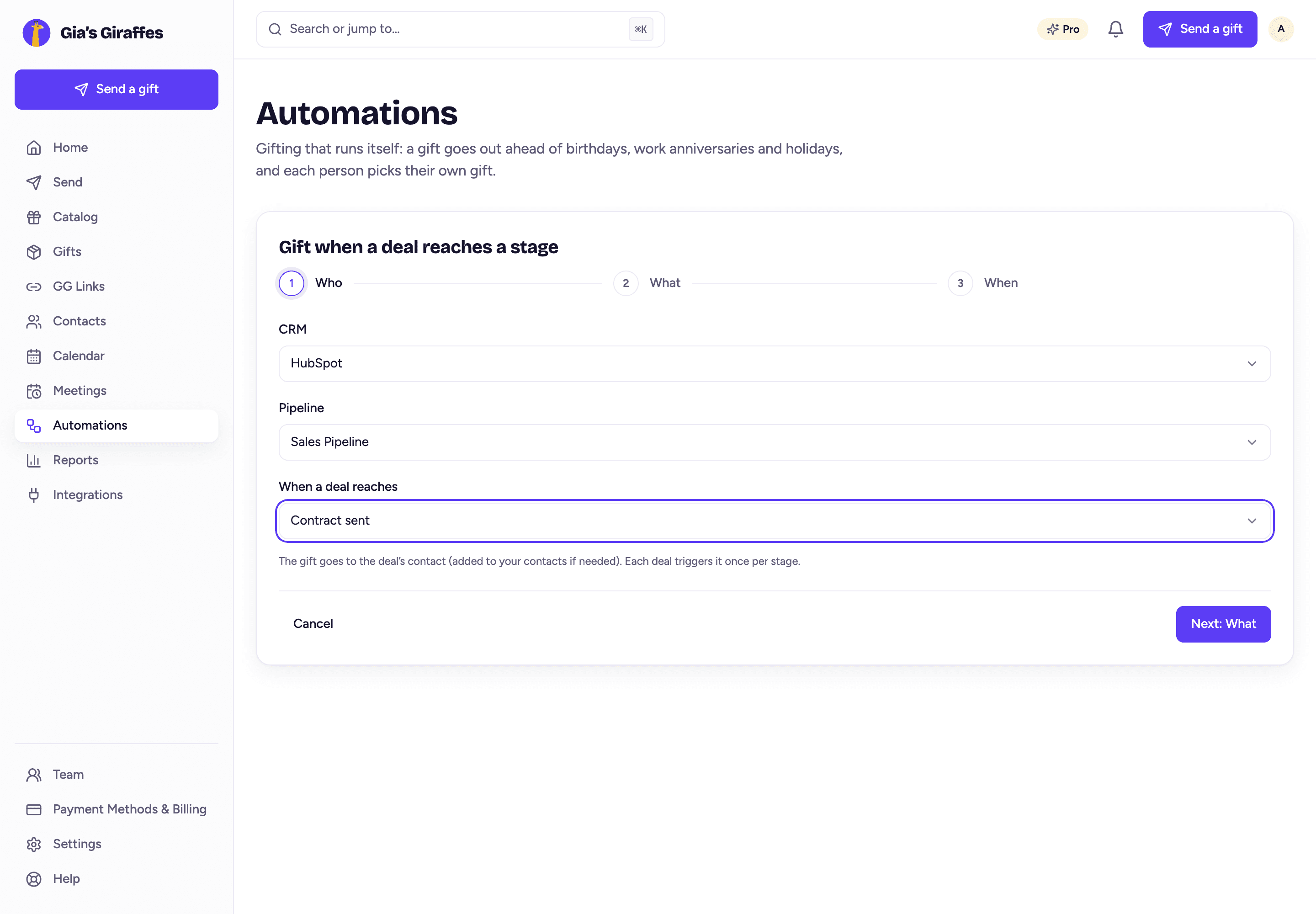
Click Gift when a deal reaches a stage on the HubSpot card. Pick the pipeline and stage, choose the gift (a specific item, the prospect's choice at a budget, or a GG Link), and decide whether each send needs your approval. Approval is on by default, so you get a heads-up and tap Approve before anything ships. Each deal triggers once per stage.
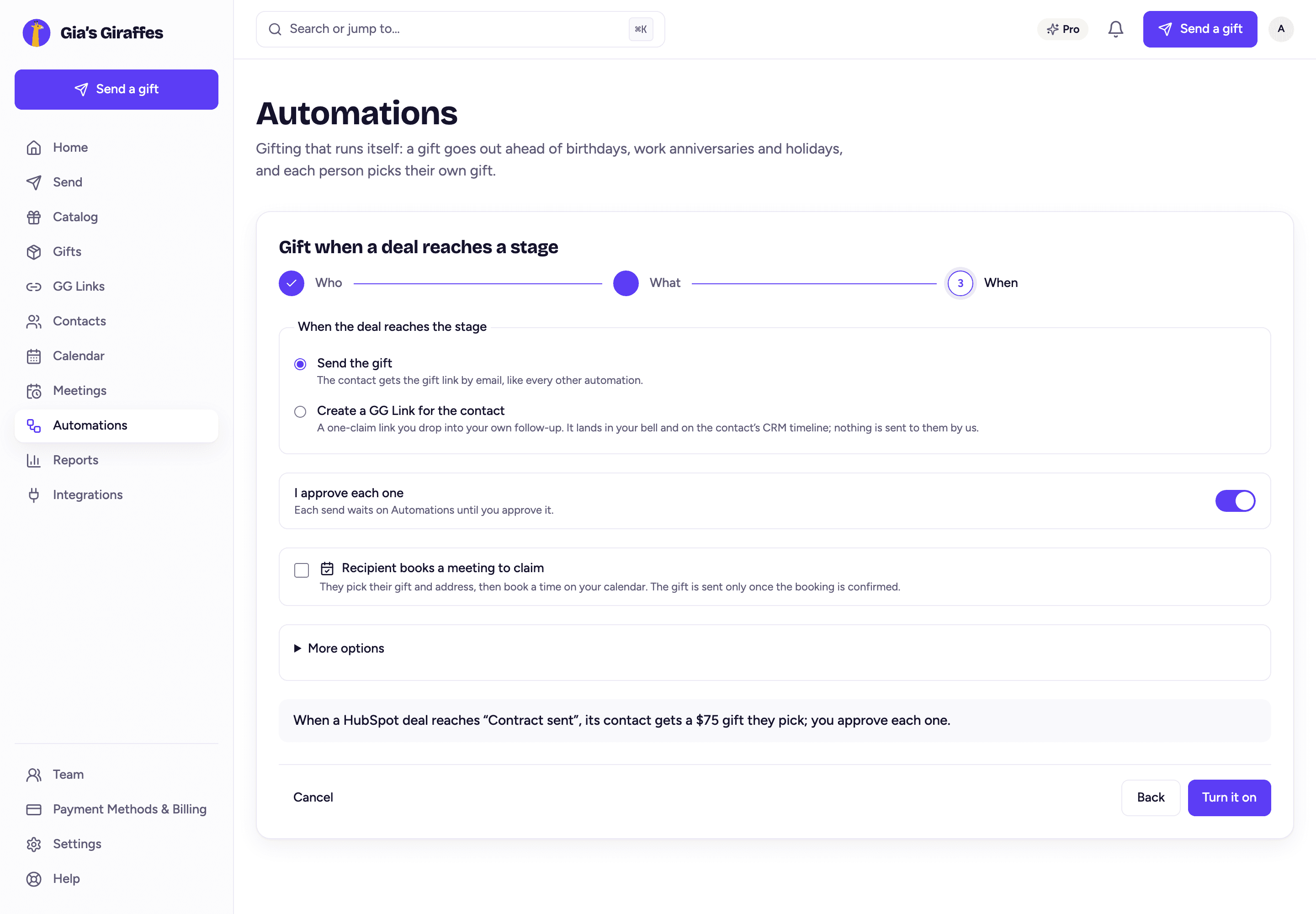
On a team: the HubSpot connection belongs to the team. Owners and admins manage it; members see it read-only. Imported contacts go into the team's shared contacts and are deduplicated against every teammate's list.
Salesforce integration
Salesforce works the same way as HubSpot, with gift events written as completed Tasks on the Contact so they show in the activity timeline your team already uses.
What syncs
| Direction | What | How often |
|---|---|---|
| Salesforce → Gia's Giraffes | Contacts you choose (the ones you own, all of them, one list view, or one campaign) and their Accounts | When you click Import contacts, then every 6 hours with Keep contacts in sync on. Fills blanks only. |
| Gia's Giraffes → Salesforce | One completed Task per gift event on the Contact (or the Lead, if the person is still a Lead) | Within seconds of each event |
| Salesforce → Gia's Giraffes | Opportunity stage changes (to trigger a gift) | Checked every 10 minutes |
How to connect
- Settings → Integrations → Connect on the Salesforce tile.
- Sign in to Salesforce and click Allow. The app asks for two permissions: manage data via APIs, and stay connected (so it can keep syncing when you're not signed in).
- Back in Settings, choose which contacts to import, then click Import contacts:
- Contacts I own (the default): Contacts you own in Salesforce. - All contacts: every Contact with an email address. - One list view: the Contacts in one of your Contact list views, with its own filters. - One campaign: the Contacts and unconverted Leads in one active campaign.
Change it any time in the Which contacts import box on the Salesforce card. Contacts already imported stay.
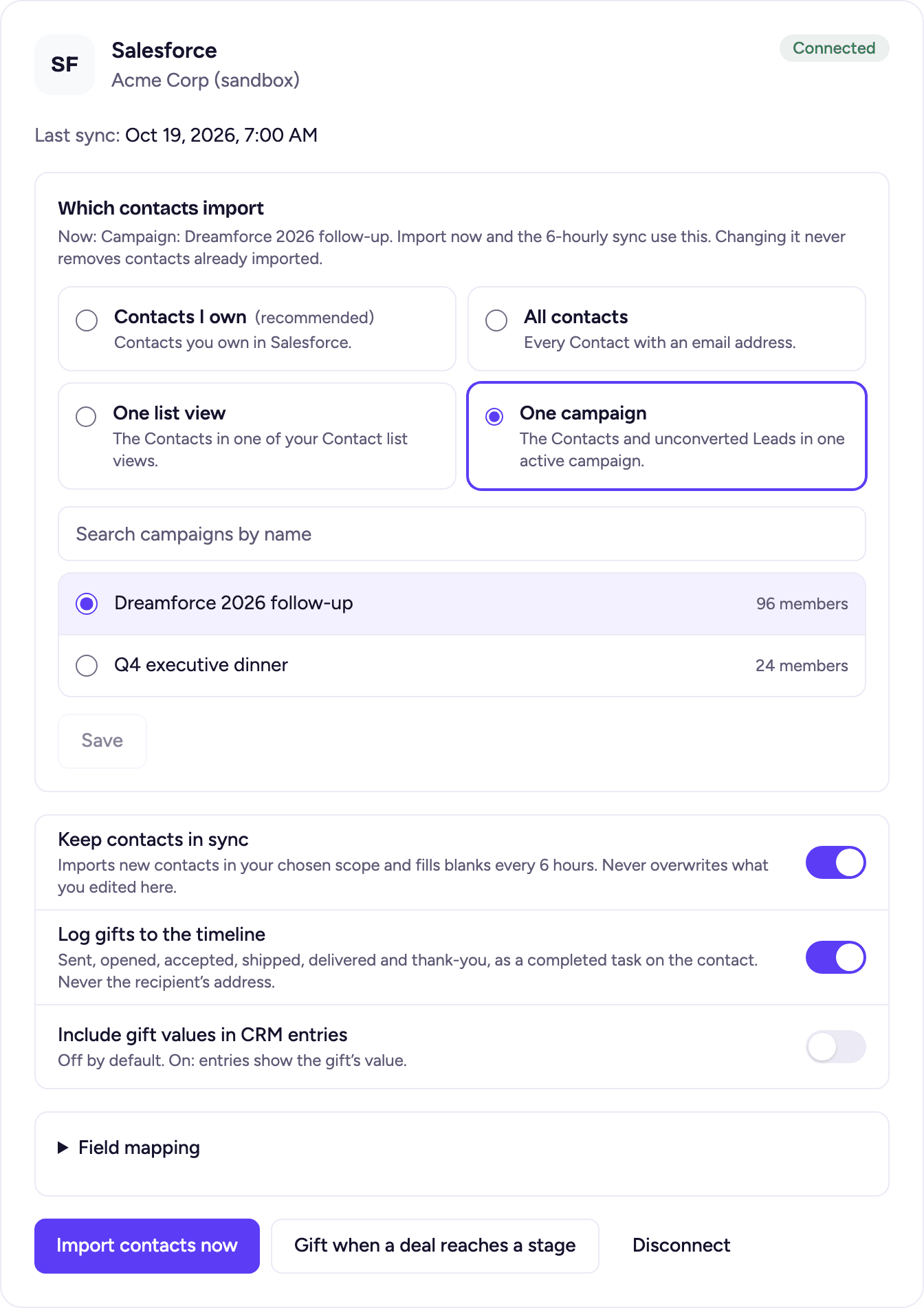
Salesforce works on any edition with API access. Professional edition needs the API add-on. Sandbox orgs aren't offered yet.
Deal-stage gifts use the same builder as HubSpot: Gift when a deal reaches a stage on the Salesforce card. Because Salesforce stage changes are checked every 10 minutes rather than pushed instantly, a gift can take up to 10 minutes to go out after an Opportunity moves.
If the connection expires: Salesforce revokes access when a password changes or an admin removes the app. The card then shows Needs reconnect with the reason. Click Reconnect Salesforce; nothing is lost, and sync resumes where it left off. The screenshot in the HubSpot section shows what that looks like.
Book a meeting to claim: Calendly, Cal.com and HubSpot Meetings
This turns a gift into a confirmed meeting. The prospect picks their gift, enters their address, then books a time on your calendar. The gift ships only after the booking is confirmed, so you pay only for meetings that actually get booked.
Connect your scheduler (once)
- Settings → Integrations → Scheduling.
- Calendly: click Connect and sign in. Automatic confirmation needs a paid Calendly plan (Standard or higher), because Calendly only sends booking notifications on paid plans. A free Calendly account still connects, but bookings are confirmed by checking Calendly rather than instantly.
- Cal.com: click Connect Cal.com and allow access, or paste an API key from your Cal.com settings (for self-hosted Cal.com).
- HubSpot Meetings: nothing extra. If HubSpot is connected, it's ready. If a prospect cancels, mark the meeting Canceled in HubSpot so Gia's Giraffes can offer Cancel/Keep.
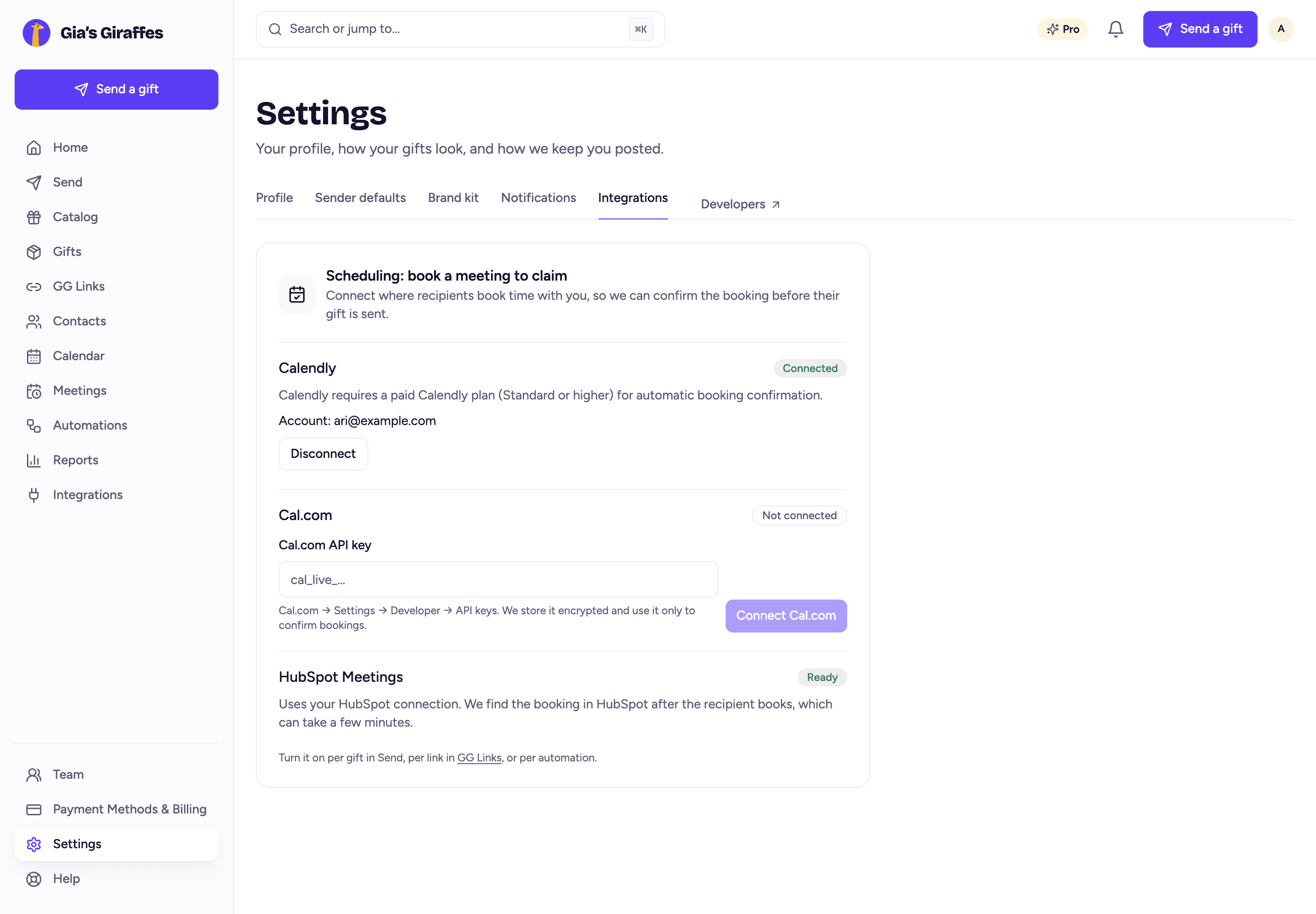
Turn it on for a gift
In the send flow's Add a note step, tick Recipient books a meeting to claim, choose the scheduler and paste your scheduling link. The same option exists on GG Links (a shareable link many prospects can claim from) and on deal-stage automations, so an outbound sequence can carry it without any extra work per send.
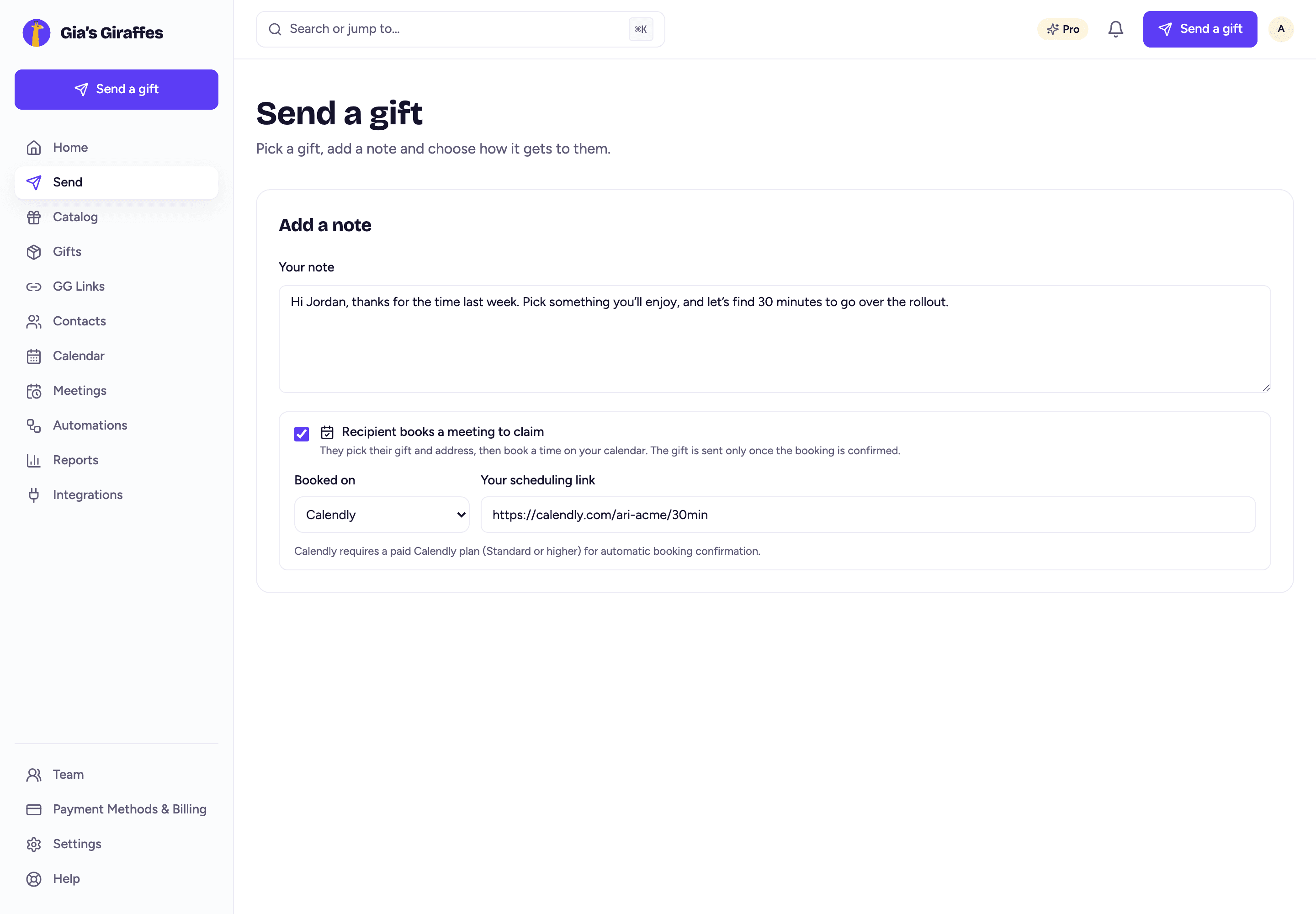
What the prospect sees
They open the gift, pick what they'd like, enter their address, and then see one last step: your calendar, embedded on the page. No price is shown anywhere. Their choice and address are saved, so if they leave and come back, they only have to book.
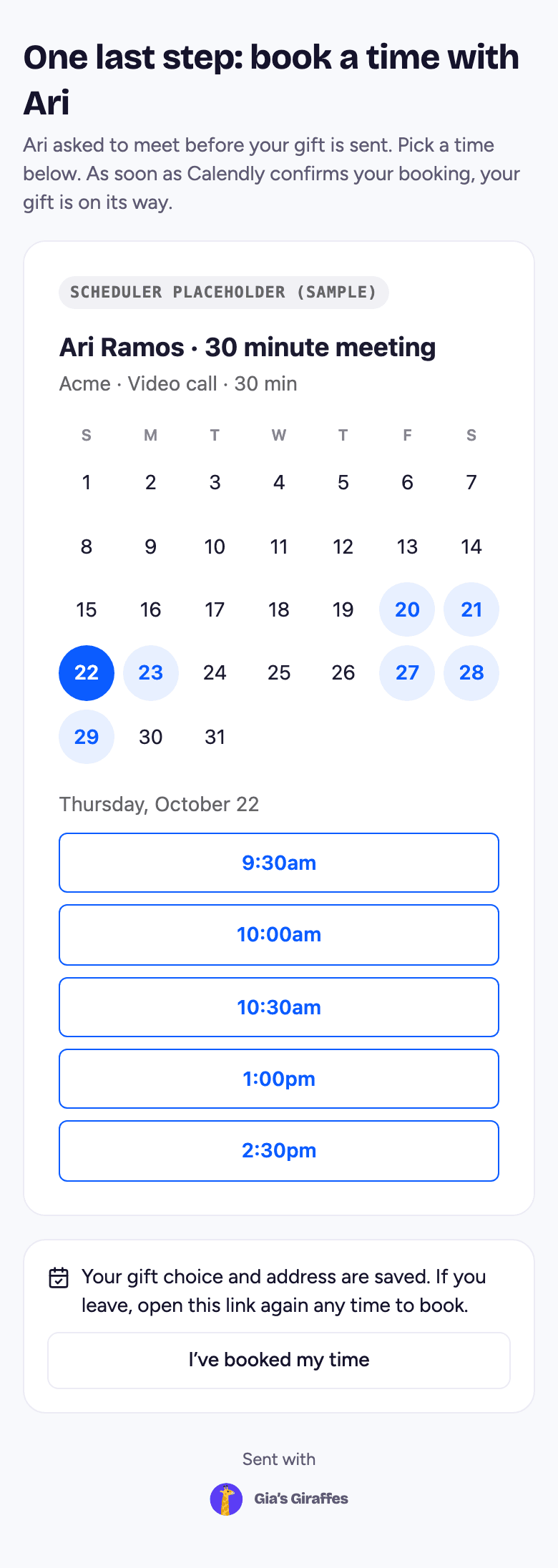
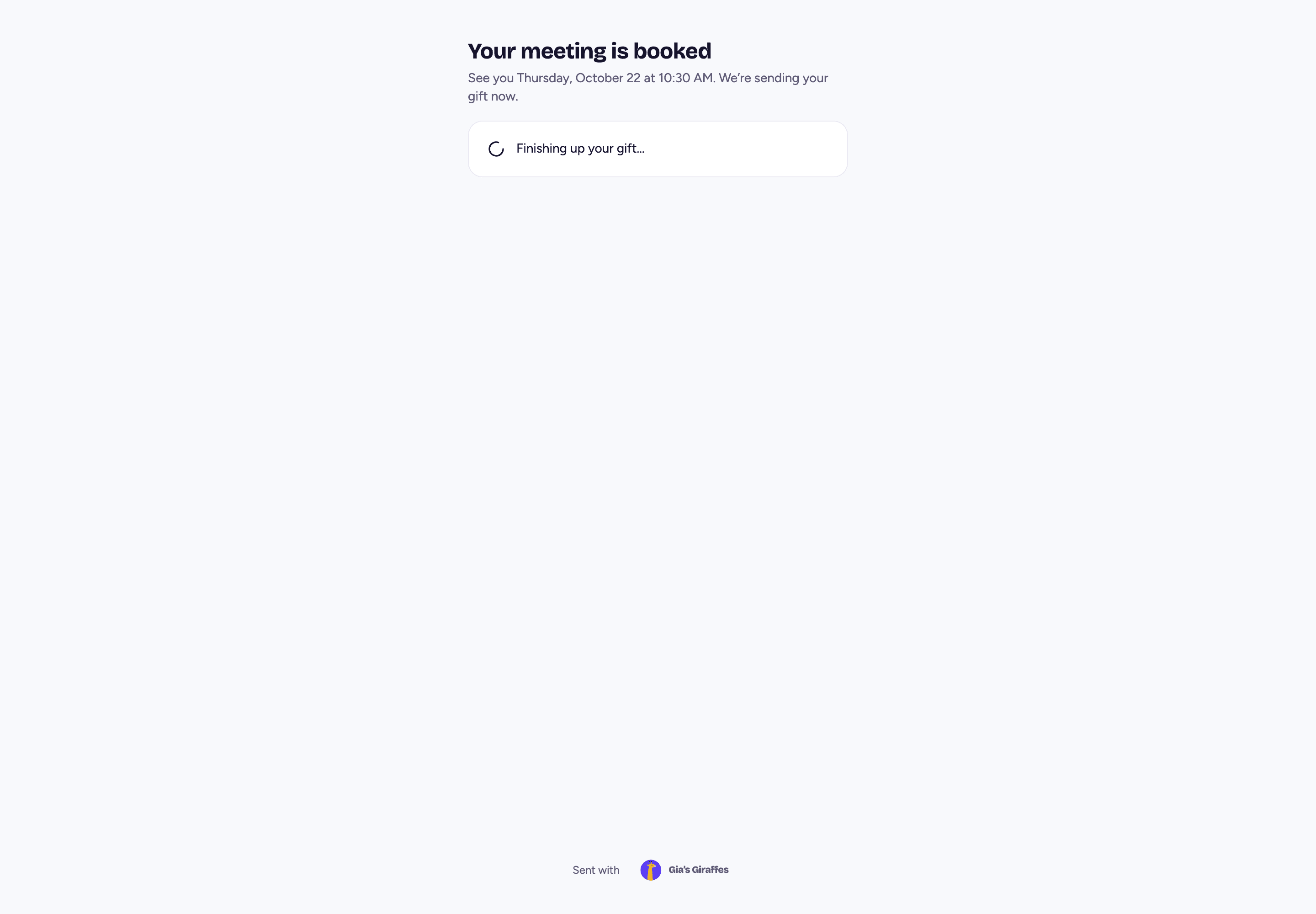
Once the scheduler confirms the booking to our server, the page updates and the gift goes out.
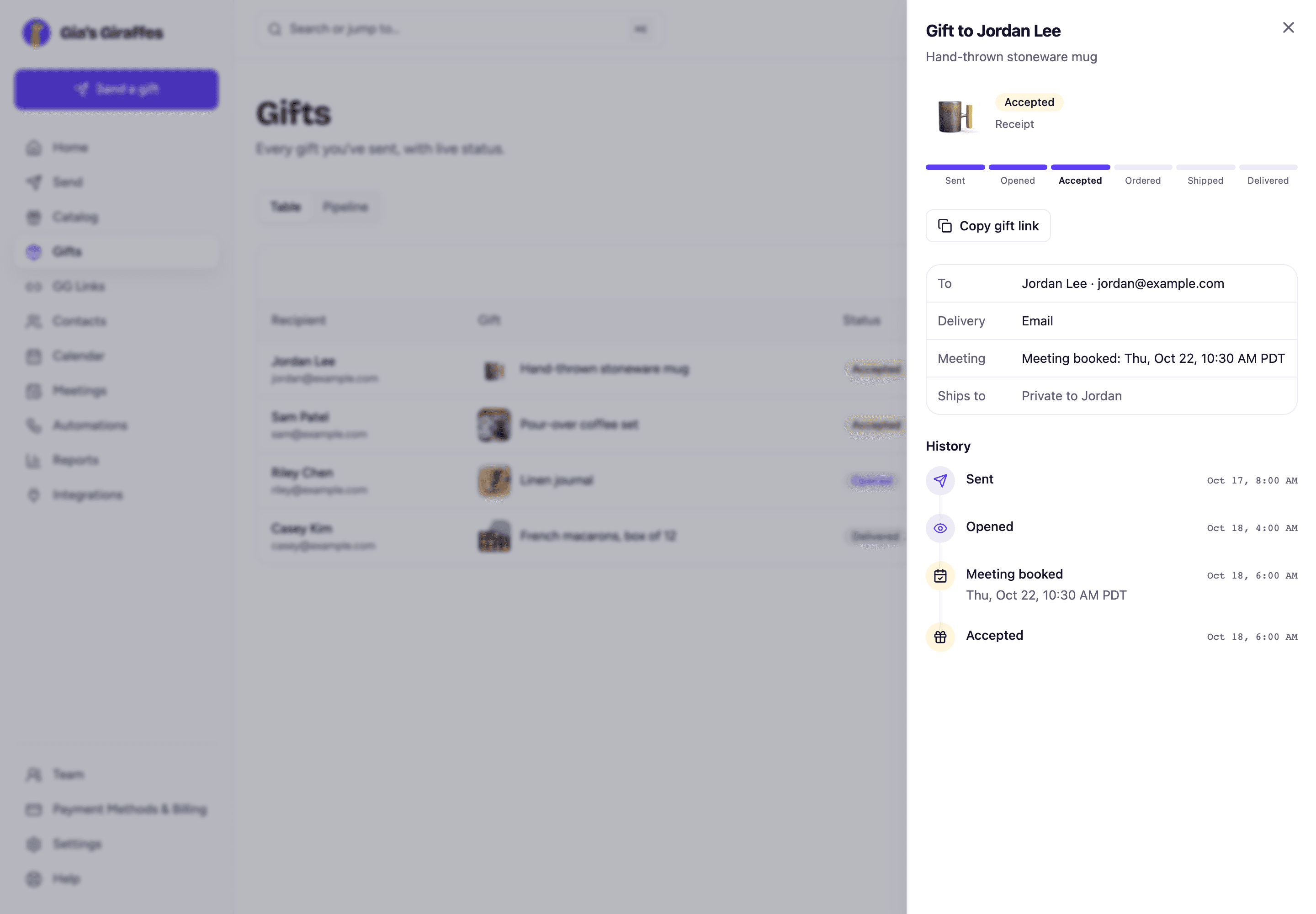
What you see
The gift in Gifts shows the booked time, and the booking appears in the gift's history and on the CRM contact if one is connected.
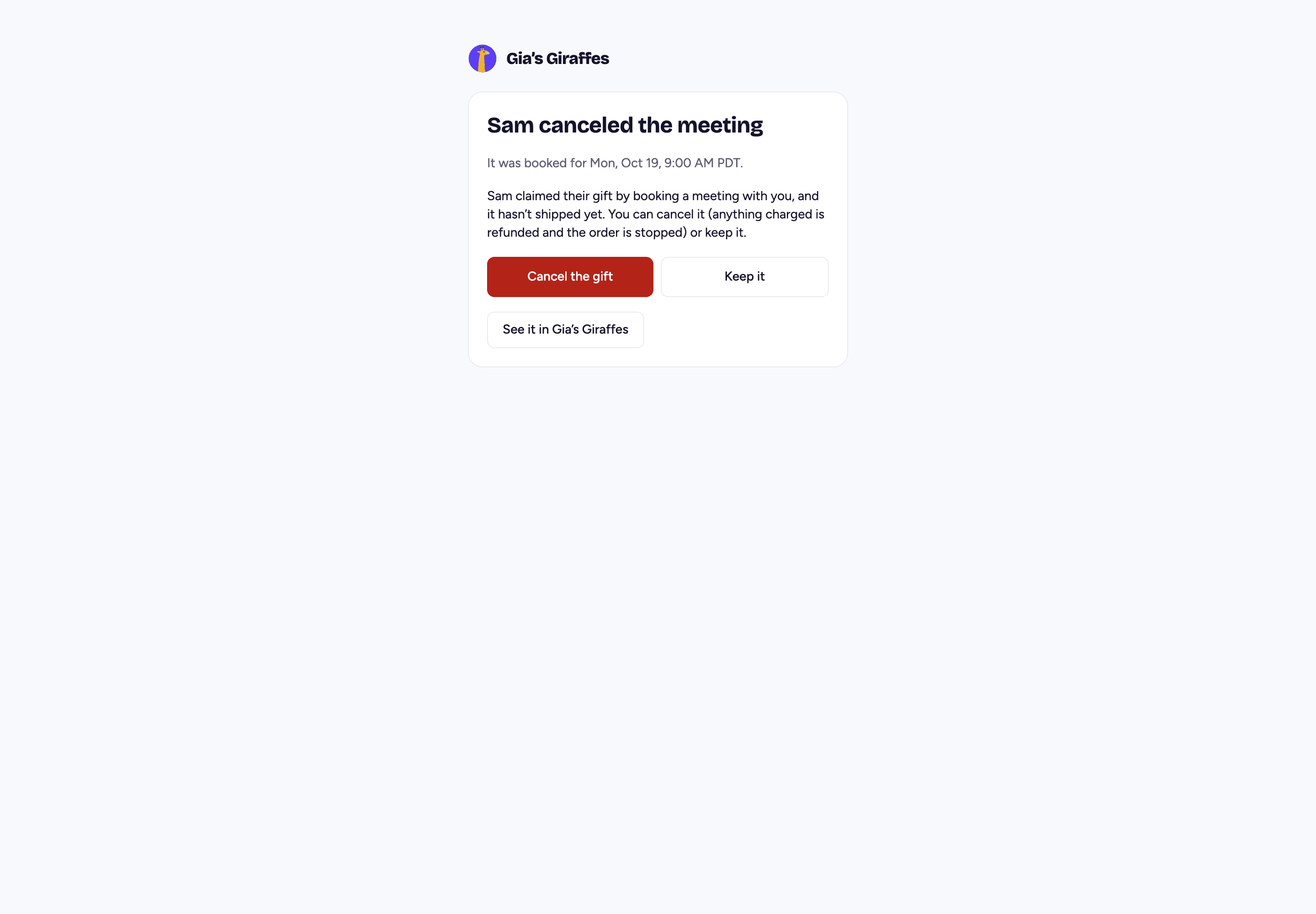
If they cancel or don't show before the gift ships, you get an email and an in-app alert with two one-tap choices: Cancel the gift (refunds you, and cancels the order automatically while it's still on hold) or Keep it (the gift ships anyway, which is often the right call for a warm relationship).
If a prospect never books, nothing is charged. The gift sits pending with the usual reminders and expires on its own.
Sales plays by deal stage
The plays that work best tie the gift to a moment the prospect already cares about, and ask for exactly one next step.
| Deal stage | Play | Setup in Gia's Giraffes |
|---|---|---|
| Cold outreach | A GG Link in your email signature or sequence: "Pick a small thank-you for 20 minutes of your time." The meeting is the claim. | GG Link with Recipient books a meeting to claim on, a modest budget, and a claim limit |
| Demo booked, no-show | Re-engage with a gift gated on rebooking. | Send a gift with the meeting option on |
| Post-demo | A thank-you gift the day after, logged to the contact so the whole team sees it. | Automation: when the deal reaches Demo completed, their choice at a budget, approval on |
| Proposal sent, gone quiet | A gift that requires booking a follow-up call to claim. | Automation on Proposal sent, meeting option on, approval on |
| Closed-won | A welcome gift to the champion, no strings attached. | Automation on Closed won, a specific gift, approval off once you trust it |
| Renewal in 60 days | A check-in gift gated on a renewal conversation. | Automation on the renewal stage, meeting option on |
With approval on, every send waits for one tap from you, so an automation can never surprise you. Turn approval off for a stage only once you're happy with how it behaves.
FAQ
- Does Gia's Giraffes integrate with HubSpot?
- Yes. It imports contacts and companies, logs every gift event as a note on the contact, and can send a gift automatically when a deal reaches a stage you choose.
- Does Gia's Giraffes integrate with Salesforce?
- Yes. Contacts and Accounts import, gift events are logged as completed Tasks, and Opportunity stage changes can trigger gifts.
- Can I import only some of my CRM contacts?
- Yes, and that's the default. Gia's Giraffes imports only the contacts you own unless you choose all contacts, one HubSpot list, one Salesforce list view, or one Salesforce campaign. Changing the choice never deletes contacts already imported.
- Can a prospect have to book a meeting before getting the gift?
- Yes. Turn on Recipient books a meeting to claim with Calendly, Cal.com or HubSpot Meetings. The gift ships only after the booking is confirmed.
- Do I need a paid Calendly plan?
- For automatic booking confirmation, yes (Standard or higher). Free Calendly accounts connect, and bookings are confirmed by checking Calendly rather than instantly.
- When is my card charged?
- When the prospect accepts the gift, or, with the meeting option on, when their booking is confirmed. Never before.
- What if the prospect books and then cancels?
- You get a one-tap choice: cancel the gift for a refund, or keep it and let it ship.
- Does the recipient see the price?
- No. Not on the gift page, the scheduler, or any email.
- Does it work for a sales team?
- Yes. On a Team plan, the CRM connection is shared, imported contacts go into the team's contacts, and member budgets and approvals apply to automated sends.
- Which plan includes this?
- Integrations and the meeting option are part of Pro.
Ready to connect your tools?
Start free. Integrations, AI tools and the meeting option are part of Gia’s Giraffes Pro.