
Connect an AI assistant to Gia's Giraffes: the MCP server guide
Set up the Gia's Giraffes MCP server in Claude, Claude in Slack, ChatGPT, Cursor or Claude Code: what the assistant can do (find gifts, check on recipients, draft and send gifts, create GG Links), how to sign in or use an API key, and the limits that keep it safe.
13 min readUpdated
Gia's Giraffes has an MCP server, so an AI assistant you already use (Claude, Claude in Slack, ChatGPT, Cursor, Claude Code) can work with your account: find the right gift, look up a contact, send a gift you approve, create a GG Link, and tell you whether a gift was opened or redeemed. You talk in plain words; the assistant calls our tools. Every gift is drafted first and sent only after you confirm it, with spending limits you set. AI tools are part of Pro.
Quick answer: what the assistant can do
Connect once (two minutes, no code), then ask for things like "Send Avery a $50 thank-you for the intro" or "Did anyone from Friday's workshop redeem their gift yet?"
| Ask for | What the assistant does | Tool it calls |
|---|---|---|
| "Find thank-you gifts under $50 from small businesses" | Searches the catalog by budget, occasion, category and more, and shows what's inside, how fast it ships and what you'd pay if accepted | search_catalog, get_gift_details |
| "Who's Avery at Northwind?" | Finds a contact (your team's shared contacts on a team), with what you've sent them before | search_contacts, get_contact |
| "Whose birthdays are coming up?" | Lists birthdays, anniversaries and other dates in a range | list_upcoming_occasions |
| "Who did I meet this week that I haven't thanked?" | Reads your connected Google or Outlook calendar and marks who already got a thank-you | list_upcoming_meetings |
| "Send Avery a $50 thank-you" | Drafts the gift and shows you the summary: who, the gift or budget, the note, the most it can cost, the card. Nothing is sent yet | create_gift_draft |
| "Looks good, send it" | Sends that draft, only with your explicit yes | send_gift |
| "Make a $40 GG Link for the 10 people at the workshop" | Creates one shareable link anyone can claim one gift from, with a claim limit, an optional end date and optional approval of each claim | create_gg_link |
| "Did Avery open her gift?" | Reports sent, opened, accepted, shipped, delivered, cancelled or expired, with times | get_gift_status, list_recent_gifts |
| "How much have I spent on gifts this quarter?" | Sums gifts sent, opened and accepted, what was charged, what could still be charged, and the connection's remaining limits | get_spend_summary |
The full tool reference, with every input and output, is on the MCP reference page. Recipients never see a price, on the gift page or in any email.
How a send works
The assistant can't send a gift in one step. The safe path is built into the tools, so it holds whichever assistant you use.
- You ask: "Send Avery a $50 thank-you for the intro."
- The assistant finds Avery with
search_contactsand drafts the gift withcreate_gift_draft. Nothing is sent. It shows you the summary: recipient, her choice of any gift up to $50, your note, the most it can cost, and the card it would charge. - You say "send it". Only then does it call
send_giftwith that draft andconfirm: true. Without your yes,send_giftsends nothing and returns the summary again. - Avery gets an email (or you get a link to share). You're charged only if she accepts, never more than the draft said.
- Later: "Did Avery redeem it?" reads the status.
Drafts expire after 24 hours. If a draft would go over this connection's spending limits or your team's AI tools cap, the draft is refused and the tool says why. A team budget works as in the app: the send goes to the owner for approval instead of out, and the assistant tells you it's pending.
Sign in from the assistant (OAuth) or use an API key
The server accepts two ways in, and you choose by what you're connecting.
Signing in (OAuth) is the main path. Claude, Claude in Slack, ChatGPT and Claude Code open our consent screen in your browser. You sign in to Gia's Giraffes, pick what the assistant can do (read only, or read, draft and send), set its spending limits, and choose Allow. No key to copy, nothing to paste into the assistant, and you can revoke it in one click later.
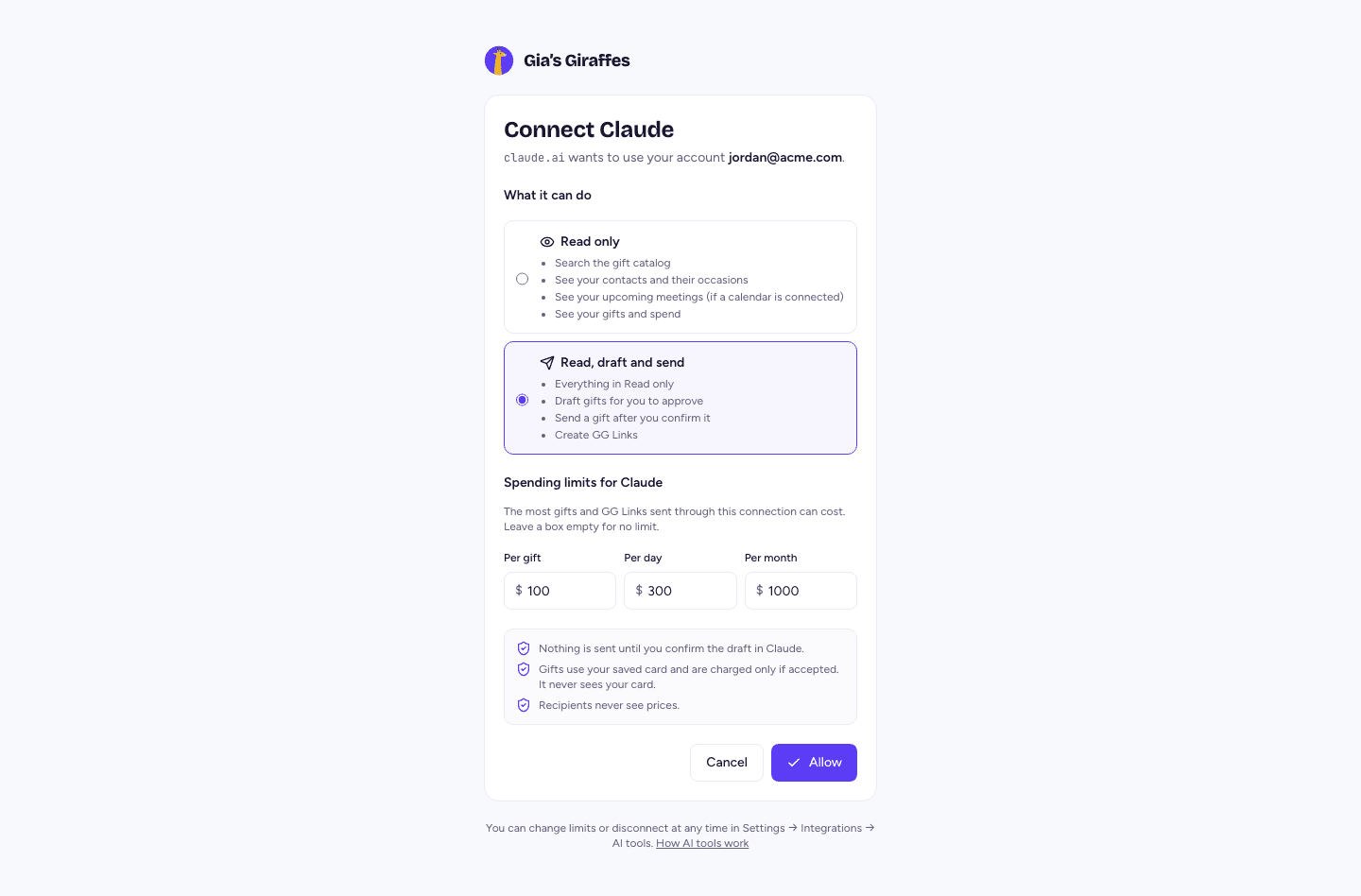
An API key is the fallback for developer tools. Cursor and other editors that read a config file can send a key as a Bearer token instead of signing in. The key keeps the scope and limits you gave it when you created it, and a test key only ever touches test data. Create one in Settings → Developers → API keys; the next section walks through it.
Both paths connect to the same server URL:
https://www.giasgiraffes.com/api/mcpWhere each shows up: assistants that signed in are listed in Settings → Developers → AI tools with their access, limits, spend and recent activity; keys stay on the API keys tab (scope, limits, rotate, revoke), with their request counts on the Usage tab.
Create an API key in Settings → Developers
You only need a key for Cursor and other tools that take a header instead of a sign-in. For Claude, Claude in Slack and ChatGPT, skip this section and sign in on the consent screen.
- Open Settings → Developers → API keys (Pro).
- Give the key a Name you'll recognize, such as "Cursor".
- Pick a Mode. Test keys only see and create test data and never make real charges, orders or texts; they're the right start. Live keys act on your real gifts and contacts.
- Pick a Scope: Read only (search, look up, check status), Read and draft (also draft gifts), or Read, draft and send (also send gifts and create GG Links).
- Set the Spending limits (per gift, per day, per month) and, if you like, an expiry date.
- Click Create key and copy it. We show it once. Keep it in a password manager or an environment variable, never in a shared file or a chat.
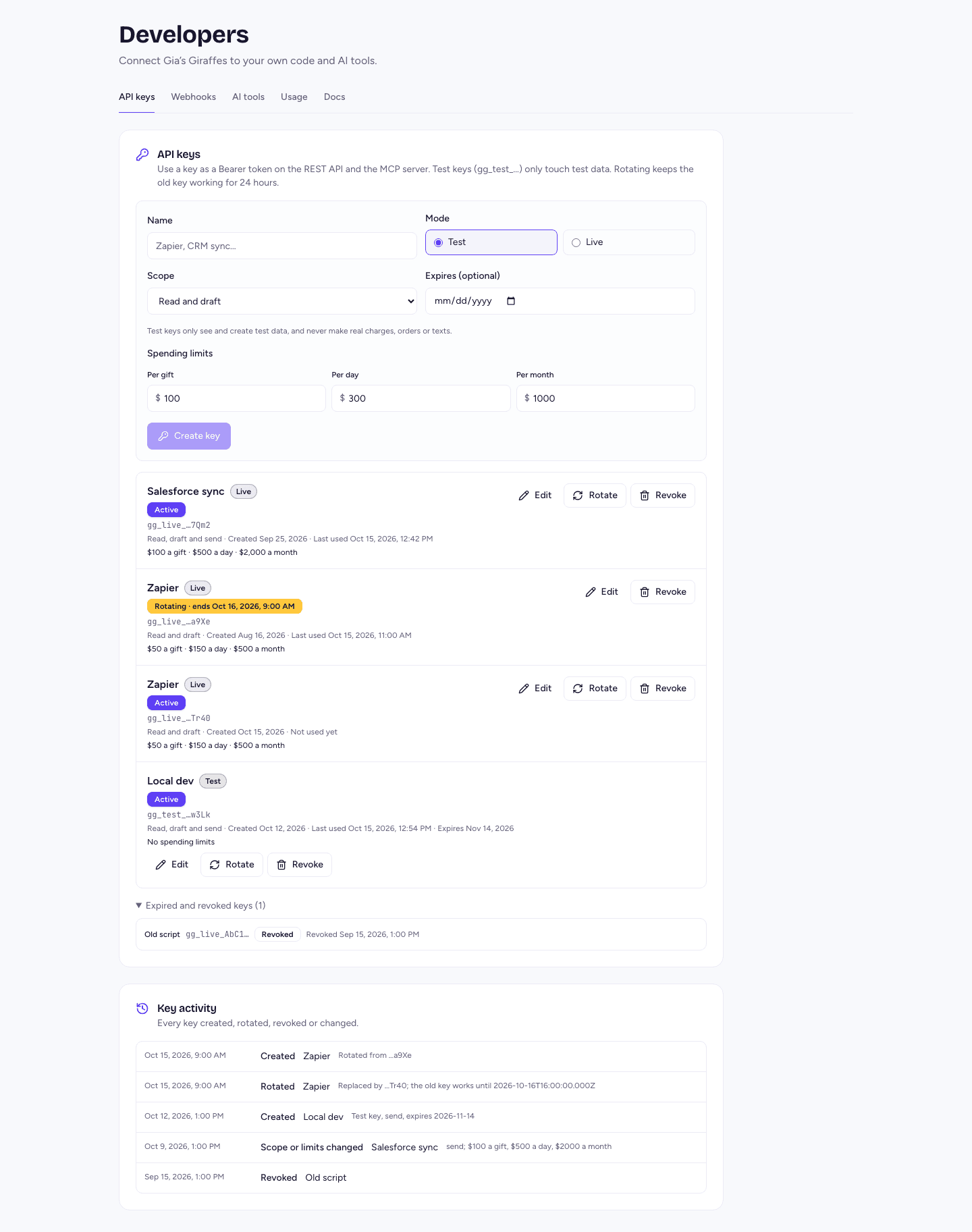
A test key starts with gg_test_, a live key with gg_live_. Send it as Authorization: Bearer <key>. Rotating a key keeps the old one working for a day; revoking it stops it at once, in Cursor and anywhere else it was used. The API docs cover modes, scopes and rotation in full.
Connect Claude (desktop and web)
Claude connects by signing in; you don't need a key.
- In Claude, open Customize → Connectors (in the desktop app, look for Connectors under Settings).
- Choose Add custom connector.
- Name it Gia's Giraffes and paste the server URL:
https://www.giasgiraffes.com/api/mcp. If the dialog shows OAuth client ID and secret fields (look under Advanced settings), leave them empty; our server registers the client itself. - Choose Connect. A browser tab opens our consent screen: sign in to Gia's Giraffes, choose what Claude can do and its spending limits, and choose Allow.
- In a chat, open the tools menu and check that Gia's Giraffes is on. Try: "Find thank-you gifts under $50."
On a Claude Team or Enterprise plan, an Owner adds the connector for the organization first (look for Connectors under the organization's admin settings); each member then connects with their own Gia's Giraffes account on the same consent screen. Connectors belong to your Claude account, so on most plans the same connection is there on the web, in the desktop app and on your phone; if it isn't, look for the Connectors page in that app's settings.
Connect Claude in Slack
Claude in Slack uses the connectors on your own claude.ai account, so there's nothing separate to install for Gia's Giraffes.
- Connect Gia's Giraffes in Claude first (the section above): Customize → Connectors → Add custom connector, then sign in on our consent screen.
- In Slack, ask Claude in a direct message, or @-mention it in a channel: "@Claude send Avery a $50 thank-you for yesterday's intro."
- The first time a channel task needs your connectors, Claude asks you privately whether it may use them: Allow, Allow with review (you approve each result before it posts) or Don't allow. In a direct message with Claude, look for the same prompt the first time, or none at all: a DM runs on your own account.
- Claude shows you the draft summary; reply "send it" to confirm. The gift is drafted and sent under your account, with your limits.
Two things to know. Your connectors serve only you: a teammate's request in the same channel can't use your Gia's Giraffes connection. And results Claude posts to a channel are visible to everyone there, so choose Allow with review for anything you'd rather check first. Claude in Slack comes with Claude's organization plans (Team and Enterprise at the time of writing); look for the Claude app in your Slack workspace, and ask your admin if it isn't installed or if personal connectors are turned off for your organization.
Connect ChatGPT
ChatGPT connects by signing in (OAuth), not with an API key. Custom connectors are behind a developer setting, and OpenAI moves it between versions, so look for these names.
- In ChatGPT, open Settings and look for Connectors (or Apps & Connectors). Under Advanced settings, turn on Developer mode. On a business workspace, an admin may need to allow it first.
- Choose Create (or Add custom MCP server).
- Name it Gia's Giraffes, add a short description ("Find and send gifts from my Gia's Giraffes account"), paste
https://www.giasgiraffes.com/api/mcpas the server URL, and choose OAuth for authentication. If it asks for a client ID and secret, leave them empty: our server registers the client itself. - Choose Create, then sign in and choose Allow on our consent screen.
- In a new chat, enable the connector from the tools menu and try: "Who did I meet this week that I haven't thanked yet?"
Which ChatGPT plans can add custom connectors, and whether they can use tools that write (draft, send), varies by plan and changes over time; if you can't find Developer mode, check your plan's settings or ask your workspace admin.
Connect Cursor
Cursor reads mcp.json. Either sign in (OAuth) or use an API key.
Add the server to ~/.cursor/mcp.json (every project) or .cursor/mcp.json in one project:
{
  "mcpServers": {
    "gias-giraffes": {
      "url": "https://www.giasgiraffes.com/api/mcp"
    }
  }
}Then open Cursor Settings and look for MCP (or Tools & MCP). Next to gias-giraffes, look for a connect or sign-in action and approve on our consent screen.
To use an API key instead, keep the key in an environment variable (never in a file you commit or share) and send it as a header:
{
  "mcpServers": {
    "gias-giraffes": {
      "url": "https://www.giasgiraffes.com/api/mcp",
      "headers": {
        "Authorization": "Bearer ${env:GIAS_GIRAFFES_API_KEY}"
      }
    }
  }
}In Cursor's agent chat, the tools appear under gias-giraffes. By default Cursor asks before running an MCP tool; if you allow some tools to run without asking, keep the prompt on for send_gift and create_gg_link.
Connect Claude Code and other MCP clients
Claude Code, in a terminal:
claude mcp add --transport http gias-giraffes https://www.giasgiraffes.com/api/mcpThen run /mcp in Claude Code, pick gias-giraffes and choose Authenticate; your browser opens our consent screen. To use an API key instead, add the header when you add the server:
claude mcp add --transport http gias-giraffes https://www.giasgiraffes.com/api/mcp \
--header "Authorization: Bearer $GIAS_GIRAFFES_API_KEY"Any other client that speaks MCP over Streamable HTTP works the same way: the server URL is https://www.giasgiraffes.com/api/mcp, it signs you in with OAuth 2.1 (authorization code with PKCE; clients register themselves, so there's no client ID to request), and it also accepts an API key as a Bearer token. The OAuth metadata is published at the standard well-known paths, so a client that follows the MCP authorization spec finds our sign-in on its own.
What the assistant cannot do
The tools are built so an assistant can't do more than you'd do yourself in the app, and a few things it can't do at all.
- Show a price to a recipient. Gift pages, GG Link pages and our emails never carry a price, whatever the assistant writes. Keep amounts out of the note too; the tool reminds it to.
- Send above your limits. Each connection has per-gift, per-day and per-month limits that count what gifts could cost, reserved atomically, so parallel sends can't slip past them together. New connections start at $100 a gift, $300 a day and $1,000 a month. On a team, the owner's monthly AI tools cap per member applies on top.
- Skip approvals. Team budgets and approvals apply exactly as in the app: a gift over a member's budget waits for the owner's approval, and a GG Link created with approval on holds every claim until you approve it. Deal-stage automations and their approvals are untouched.
- Send without a draft you've seen.
send_giftneeds a draft fromcreate_gift_draftandconfirm: true; otherwise it sends nothing and hands back the summary. - See, enter or change your card. Gifts use your saved card (or your team card) and are charged only if accepted. If no card is on file, the assistant gives you a link to add one in the app. Never type card details into a chat.
- See a recipient's mailing address or tracking. Status tools report sent, opened, accepted, shipped and delivered; the address and the carrier details stay in the app.
- Send texts. Gifts go out by email, or as a link you share yourself.
- Reach anyone else's data. A connection sees your own gifts, contacts and spend, plus your team's shared contacts, and nothing else.
- Draft or send on a read-only connection. If you chose Read only on the consent screen, it can search and look things up and that's all.
- Work on a Free plan. AI tools are part of Pro (including Complimentary Pro and Pro team seats). A connection whose account leaves Pro gets an upgrade message instead of results until it's back.
Spending limits, teams and the activity log
Every connection has its own limits and its own log, so you can give an assistant exactly as much room as you're comfortable with.
Limits. Set per gift, per day and per month on the consent screen (or when you create a key), and change them any time in Settings → Developers → AI tools. They count budgets, not charges, so they hold before anyone redeems; a GG Link counts as claims × budget. Leave a box empty for no limit.
Teams. Owners can cap what each member sends through AI tools and API keys a month, on the Team page. Monthly team budgets and approvals apply as in the app. Gifts sent this way show "Sent via Claude" (or the tool's name) in Gifts and in Reports, so the team can see where a gift came from.
The log. Every tool call is recorded: which tool, a summary of what was asked (never a token or anything card-like), and the result. For an assistant that signed in, the recent activity is under its connection in Settings → Developers → AI tools; for an API key, the Usage tab shows its daily request and error counts. Each connection can make 60 requests a minute.
See and revoke connections
Settings → Developers → AI tools lists every connected assistant: when it connected, when it was last used, what it has spent and committed this month, its limits and its recent activity.
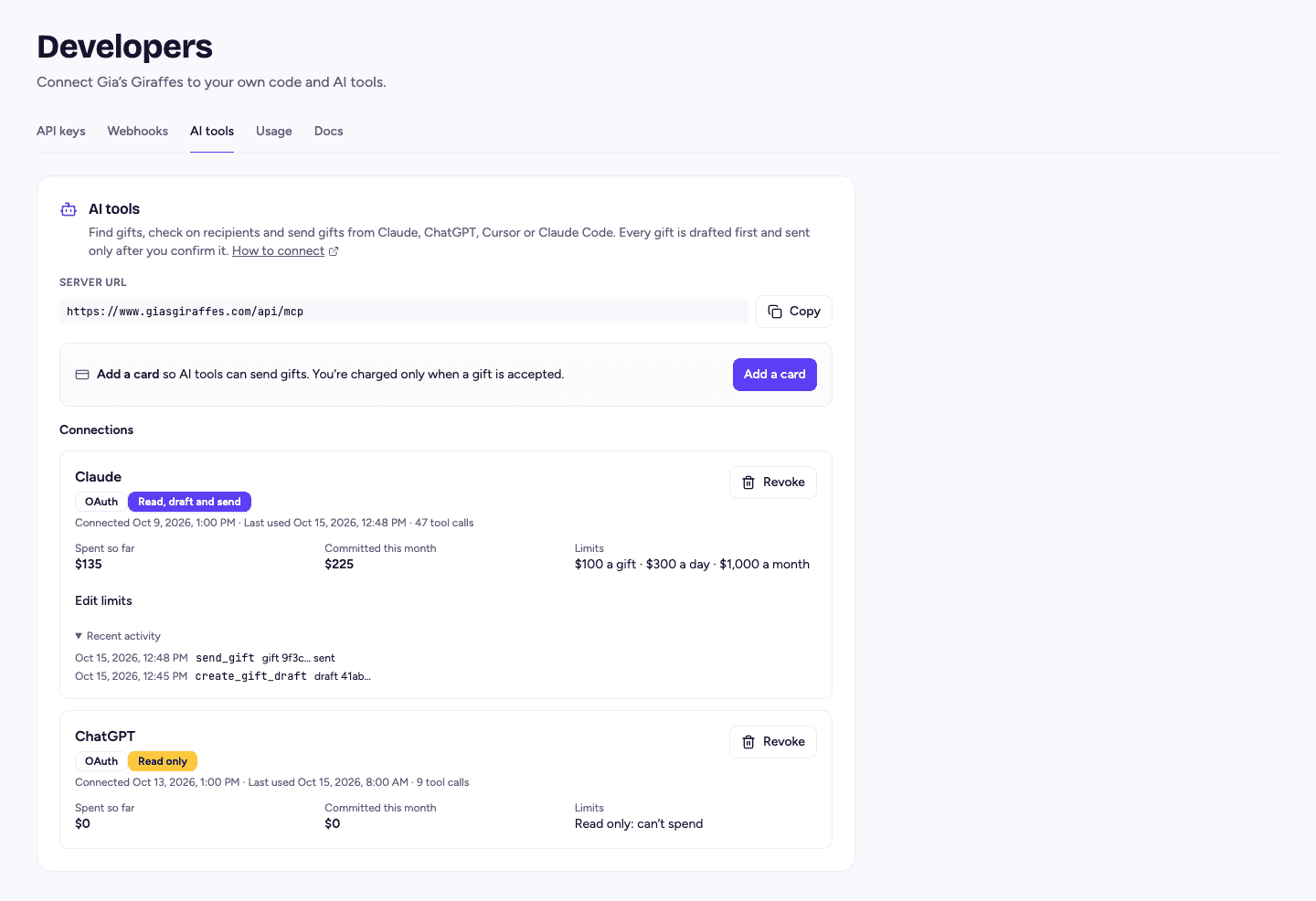
Choose Revoke to disconnect one; it stops working immediately, and the assistant will ask you to connect again if you want it back. A tool connected with an API key isn't listed here: revoke the key on the API keys tab instead, and it stops at once. Questions: hello@giasgiraffes.com.
FAQ
- Which AI assistants work with Gia's Giraffes?
- Claude (web, desktop and mobile), Claude in Slack, ChatGPT, Cursor, Claude Code, and any other client that speaks MCP over Streamable HTTP.
- What is the Gia's Giraffes MCP server URL?
- https://www.giasgiraffes.com/api/mcp. Paste it as the server URL in your assistant's custom connector or MCP settings.
- Do I need an API key?
- Not for Claude, Claude in Slack or ChatGPT: they sign you in on our consent screen (OAuth). A key is for tools like Cursor that take a header instead; create one in Settings → Developers → API keys.
- Can the assistant send a gift without asking me?
- No. It must draft the gift first and show you the summary, and send_gift only sends with confirm: true after you say yes. Without that it sends nothing and returns the summary.
- Can the assistant see my card?
- No. Gifts use the card saved in your account and are charged only if the recipient accepts. If there's no card, the assistant gives you a link to add one in the app. Never share card details in a chat.
- Does the recipient see the price?
- No. Not on the gift page, not on a GG Link page, not in any email, whichever assistant sent it.
- How do I set spending limits?
- On the consent screen when you connect, or any time in Settings → Developers → AI tools: per gift, per day and per month. New connections start at $100 a gift, $300 a day and $1,000 a month.
- What if I'm on a team with budgets or approvals?
- They apply exactly as in the app. A gift over your budget waits for the owner's approval, and the owner can also cap what each member sends through AI tools a month.
- Can I try it without spending real money?
- Yes, in Cursor, Claude Code or another client that takes a key: create a Test key in Settings → Developers → API keys and connect with it. Test keys only see and create test data, their sends go out in test mode, and they never make a real charge, order or text. GG Links need a live key (their claims are charged for real). Claude and ChatGPT sign in instead of taking a key, so they always work on your real account; a read-only connection is the safe way to look around there.
- How do I disconnect an assistant?
- If it signed in: Settings → Developers → AI tools, then Revoke next to the connection. If it uses an API key: Settings → Developers → API keys, then Revoke the key. Either way it stops working immediately.
- Is there a record of what the assistant did?
- Yes. Every tool call is logged. For an assistant that signed in, see its recent activity under the connection in Settings → Developers → AI tools; for an API key, the Usage tab shows its request counts. Gifts sent this way are marked "Sent via Claude" (or the tool's name) in Gifts and Reports.
- Which plan includes AI tools?
- Pro, including Complimentary Pro and Pro team seats. On Free, the consent screen shows an upgrade message instead.
Ready to connect your tools?
Start free. Integrations, AI tools and the meeting option are part of Gia’s Giraffes Pro.